
Bridging Printing
Bridging Printing

The FDM 3D printing consists of a series of layers of molten material placed on top of each other; in this way, complex objects are created through a succession of layers. However, often some layers must be placed in areas without a base, so the layer is printed literally in a vacuum and it will inevitably fall down, but to overcome this problem it is possible to use supports, which act as a temporary scaffolding and can be removed once the print has been completed.

In some special cases it is possible to print suspended layers, without the use of supports. It may seem like an impossible feat, but over short straight distances you can print in a vacuum by instantly solidifying the layer using the air from the printer fans, thus creating a solid connection. This phenomenon is called Bridging and can be accomplished by means of some key print settings, such as flow, print speed and cooling.

Depending on the settings used, the solidification of the layer may occur too slowly, thus causing it to sagging or lowering, as seen in the following photo.

By the way, below are some tips on how to improve bridging printing.
For tests you can download this sample, which can be printed several times depending on the settings chosen, until you find a satisfactory result:
https://www.thingiverse.com/thing:476845

First you need to make sure that the print stream has been calibrated correctly; in this regard, it is possible to consult the previous lesson, relating to the "Printing Flow Calibration".

At this point, proceeding with the printing of the sample, if the bridging has unsatisfactory quality, it is possible to decrease the printing speed; progressively reducing the speed by about 5 mm/s it is possible to carry out various tests, until the ideal value is found.

Printing temperature also plays a key role in bridging; in fact, the hotter the layer, the longer it takes for its solidification, thus causing a sagging. For this reason, by progressively reducing the printing temperature by about 5 ° C it is possible to carry out various tests, until the ideal value is found.

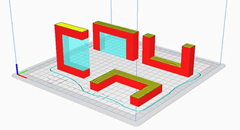
If the bridge is very long and the geometry of the object allows it, it is often possible to rotate the object until the suspended part disappears completely, as shown in the figure. However, in most cases this is not possible (including the case of printing the sample), so it is a solution that can be counted on very rarely.

Longer Dual Blower Kit

As mentioned from the beginning, for bridging the quality of air emitted by the cooling fan is fundamental, which must be able to instantly solidify the layer; for this reason, if changing the slicing settings is not enough, then the new Longer Dual Blower can help.

The new Longer Dual Blower has been specially designed to allow a faster and more uniform emission of cooling air, thanks to two bilateral turbo fans and a double ventilation duct; in this way the prints are much more detailed and the bridging printing greatly improved.

The installation is very simple, and can be done by consulting this video guide: https://youtu.be/zEA-eM5sfho

The purchase is available on the Official Longer Store:
https://www.longer3d.com/collections/accessories/products/longer-new-dual-blower-fan-kit

https://www.longer3d.com/products/lk5-pro-fdm-3d-printer

By Software | June 16, 2022
Printing Supports - LONGER
Printing Supports

FDM 3D printing consists of a series of layers of molten material placed on top of each other; in this way, complex objects are created through a succession of layers. However, often some layers must be placed in areas without a base, so the layer is printed literally in a vacuum and it will inevitably fall down, but to overcome this problem it is possible to use supports, which act as a temporary scaffolding and can be removed once the print has been completed.

In a previous lesson, we saw how in some special cases it is possible to print suspended layers, without the use of supports, using the phenomenon called Bridging, but this technique is limited to particular designs mostly straight and of short distances. For most prints there will inevitably be a need to use Printing Supports.

As anticipated, the supports are printed structures that are not part of the original design, but are scaffolding external to the design that are used temporarily for printing the object, and in particular serve to ensure that the cantilevered parts of the object are extruded over a solid structure instead of in a vacuum, so as not to collapse downwards. These support structures are temporary because at the end of printing, they will have to be removed, thus having a model printed according to the original design.

In the Cura slicer there are various types of supports to choose from, and most of them are equivalent, that is, choosing one type instead of another does not make a big difference; they are mainly based on vertical structures, more or less dense, and a good default configuration of the supports can be indicated in the following photo:

A separate case is the Tree Supports, which tend to be less dense and easier to remove at the end of printing, since just like a tree these supports have a common base at the bottom and expand upwards in more branches just with a tree. Therefore, a smaller support surface at the bottom corresponds to a greater support surface at the top, and this saves material for the realization of the supports and facilitates the removal of the supports thanks to their particular upward development configuration.

The example below shows how, with the same model, the two different types of support take on a different development, while performing the same function:

Although tree supports always seem to be the best choice for various reasons, in reality it is necessary to evaluate on a case-by-case basis what type of support to use, as depending on the geometry of the model it may be more convenient to use classic vertical supports, so as to guarantee greater resistance during printing. In any case, the best way to get answers in this regard is to empirically test the various types of support and evaluate those that best suit the type of model to be printed.

https://www.longer3d.com/products/lk5-pro-fdm-3d-printer

By Software | June 16, 2022
Nozzle Size Comparing - LONGER
3D Printer Nozzle Size Comparing: Speed, Detail & Layer Height Explained

In 3D printing, the nozzle diameter plays a key role in determining the maximum layer height you can use. As a general rule, the maximum layer height is about 80% of the nozzle’s diameter. For example:

  • With a 0.4 mm nozzle, the layer height can go up to 0.32 mm.

  • With a 0.8 mm nozzle, it can reach 0.64 mm.

  • With a 0.2 mm nozzle, the maximum is 0.16 mm.

What’s important to note is that the nozzle size only limits the maximum layer height — not the minimum. This means that even with a large 0.8 mm nozzle, you can still print with fine resolutions like 0.05 mm, just as you would with smaller nozzles.

In simple terms, larger nozzles allow faster printing while still being capable of high detail, and smaller nozzles focus on fine detail but print more slowly.

By Software | June 16, 2022
Tolerance Test for Joints - LONGER
Tolerance Test for Joints

When creating laser-cut assemblies, one of the most common challenges is achieving the correct fit between connected parts. A tolerance test for joints helps determine whether pieces fit too tightly, too loosely, or exactly as intended. Running this test before producing a full project can reduce wasted materials and improve assembly quality.

Table of Contents

  • What This Guide Covers
  • Why This Process Matters
  • Before You Start
  • Requirements
  • Precautions
  • Step-by-Step Tutorial
  • Common Problems and Solutions
  • Tips for Better Results
  • Frequently Asked Questions
  • Final Thoughts

What This Guide Covers

This guide explains how to perform a tolerance test for joints for laser-cut parts and assemblies. It helps beginners understand why fit calibration matters and how testing affects final project quality.

Quick Answer

A tolerance test for joints is a small calibration process used before manufacturing final parts. It allows users to determine the ideal fit between connected laser-cut pieces by evaluating how tightly or loosely components assemble together.

Running a test before a full production job helps reduce material waste and improves dimensional accuracy.


Why This Process Matters

Even when using the same machine repeatedly, several factors can affect the fit of laser-cut joints:

  • Material thickness may vary
  • Different materials cut differently
  • Laser kerf can change
  • Machine calibration affects results
  • Power and speed settings may influence cut width

A design that fits perfectly in one material may become too tight or too loose in another.

Testing first helps you:

  • Improve assembly accuracy
  • Reduce wasted materials
  • Avoid repeated cutting attempts
  • Create consistent press-fit results
  • Increase project reliability

For projects involving:

  • Boxes
  • Mechanical assemblies
  • Snap-fit structures
  • Press-fit designs
  • Interlocking components

Tolerance testing becomes especially important.


Before You Start

Before beginning the tolerance test process, ensure your machine is operating correctly.

Check the following:

  • Machine is powered correctly
  • Laser focus is properly adjusted
  • Material is flat
  • Lens is clean
  • Working surface is stable

If additional setup information is required:

Follow official machine specifications or instructions.


Requirements

You may need:

  • Laser engraver or cutter
  • Test material
  • Joint test file
  • Computer with design software if required
  • Measuring tools if needed

Use the same material type and thickness planned for the final project whenever possible.


Precautions

Before running the test:

  • Verify that material thickness matches your intended project material
  • Ensure the material is secured
  • Keep the laser area ventilated
  • Do not leave the machine unattended during operation
  • Follow machine safety guidelines

Avoid making assumptions about material dimensions.

Material manufacturers often list nominal thickness values, but actual thickness can vary.


Step-by-Step Tutorial

Because the original procedure and exact operating sequence are the source of truth, preserve all original steps exactly as provided in the official tutorial.

If specific values, menus, file names, measurements, or settings are required:

Follow official machine specifications or instructions.

Step 1: Prepare the Joint Test File

Action

Prepare the official joint tolerance test file from the original tutorial.

Why this matters

The test file is designed to compare multiple fit variations in a controlled way.

Expected result

The file is ready for processing.

Important notes

Do not modify:

  • Dimensions
  • Slot values
  • Labels
  • File names

Step 2: Import the Test File

Action

Load the official test file into your software.

Why this matters

Correct file loading ensures the intended geometry remains unchanged.

Expected result

The design appears correctly in the workspace.

Important notes

Avoid rescaling the model.

Even small changes may affect the test outcome.


Step 3: Configure Machine Settings

Action

Apply the settings specified in the original tutorial.

Why this matters

Laser parameters influence cut width and therefore joint fit.

Expected result

Machine settings match official recommendations.

Important notes

Do not change:

  • Power values
  • Speed values
  • Pass numbers
  • Material settings

Use only official values.


Step 4: Start the Test

Action

Run the joint tolerance test process.

Why this matters

This step creates physical samples that allow fit evaluation.

Expected result

The machine cuts the test pieces successfully.

Important notes

Observe the process for:

  • Excessive burning
  • Incomplete cutting
  • Unexpected movement

Step 5: Evaluate the Results

Action

Assemble and compare the test joints.

Why this matters

The purpose is identifying the best fit for your material.

Expected result

You can determine whether joints are:

  • Too tight
  • Too loose
  • Properly fitted

Important notes

The ideal fit should:

  • Hold firmly
  • Avoid excessive force
  • Allow consistent assembly

Common Problems and Solutions

Problem Possible Cause Solution
Joint too tight Material thicker than expected Use the tested fit result from the calibration sample
Joint too loose Material thinner than expected Recheck material dimensions
Parts do not separate cleanly Incomplete cutting Follow official machine specifications or instructions
Burn marks on edges Cutting conditions may require adjustment Follow official machine specifications or instructions
Fit differs between materials Material properties vary Run a new tolerance test for each material type
Results vary between runs Machine calibration differences Verify machine condition and setup

Tips for Better Results

Use actual project materials

Different materials behave differently during cutting.

Testing on scrap material from the final project batch often produces better consistency.

Test every material change

Examples include:

  • Different plywood brands
  • Acrylic sheets
  • MDF
  • Basswood

Even identical labeled thicknesses can behave differently.

Keep optics clean

Dust accumulation on lenses can affect cut consistency.

Store successful settings

Record:

  • Material type
  • Thickness
  • Test outcome

Building a material database can save time later.


Frequently Asked Questions

1. Why is my laser-cut joint too tight?

Material thickness variation and laser kerf differences commonly affect fit.

Run a tolerance test before producing the final parts.


2. Do I need to test every material?

Yes. Different materials can produce different cutting behavior even if thickness values appear identical.


3. Can I use the same settings for plywood and acrylic?

Not necessarily.

Different materials react differently during cutting.

Follow official machine specifications or instructions.


4. Why do my assembled parts crack?

Excessively tight joints may create stress during assembly.

Perform fit testing before full production.


5. What is kerf?

Kerf is the material removed during cutting.

The laser beam width creates a small cut gap that influences fit accuracy.


6. Should I modify the official test dimensions?

No.

Keep all original dimensions unchanged.

Changing dimensions may invalidate the results.


7. Why does the fit change on different days?

Environmental conditions and material variation can influence results.

Running a quick calibration test before important projects can improve consistency.


Final Thoughts

A tolerance test for joints is a simple but valuable process for improving laser-cut assembly accuracy. Instead of discovering fit problems after producing a complete project, testing first helps identify the correct joint behavior with minimal material waste.

Maintaining the original workflow and official parameters is important. When details are not provided in the source documentation, always:

Follow official machine specifications or instructions.

By Software | June 16, 2022
Blobs in 3D Printing - LONGER
Blobs in 3D Printing

Many users of 3D printing, regardless of their experience, often find themselves facing an annoying problem that is really difficult to eliminate: blobs on the outer surface of the prints. This phenomenon often appears suddenly, only on particular prints, even when you think you have found the perfect Slicer settings for optimal print quality. So we proceed with varying the temperature, the speed, the accelerations, etc., but despite this the problem is not solved, but only a little attenuated.

Blobs are deposits of molten material along the outer surface of a print, take on the appearance of "little balls" and are difficult to remove even by handworking the print in post-production. These occur when the nozzle abnormally releases molten material, and often this is independent of slicer settings such as retraction and flow.

When math is indispensable for 3D printing

In geometry, a polygon takes on a different name and appearance based on its number of sides (segments). In particular, a polygon composed of 3 segments will be called a triangle, composed of 5 segments will be called pentagon, 6 hexagon segments, 10 decagon segments, ..........., from 1.000.000.000 segments will be something very similar to a circumference, from 1.000.000.000.000 segments will look almost a circumference, from 1.000.000.000.000.000.000 segments will be practically a circumference.

Thus, a polygon of n-sides, with very large n and each segment very small, can be approximated with a circle, with greater precision as nincreases. This technique is used by 3D printers to print a circumference, transforming it into a series of XY coordinates of n segments, with n more or less large depending on the number of meshes of the original stl model. Thus, a circumference is a series of countless segments, each of very small amplitude, made one after another on the hotbed of the 3D printer.

However, what to the eye seems to be a very simple circumference, actually requires a high computational cost for the mainboard of the 3D printer, as it is necessary to process in a fraction of a second millions of coordinates of millions of segments. In addition, depending on the number of meshes of the original stl model, 3D printing may often have to process much more data than is sufficient to achieve a perfect circumference, sometimes even more than its hardware capacity in terms of resolution.

Therefore, if for example the 3D printer can realize a perfect circumference starting from 10.000.000.000 segments, and this is also its maximum resolution, when its mainboard is found to process 1.000.000.000.000.000 segments this will perform unnecessary work, both because it is possible to obtain an optimal result with a lower computational cost and because such processing cannot be put into practice due to the hardware limitations of an FDM printer.

Correlation between geometry and blobs

As seen above, for a simple circumference, a 3D printer is faced with a very complex calculation in no time, often a calculation even greater than necessary. So it can happen that the mainboard cannot process the data in time, so the hardware not receiving print coordinates can only stop. These stops occur for a very short time, almost imperceptible, but they are enough for the nozzle to lose molten material along the outer perimeter of printing, thus forming a blob.

Therefore, regardless of one's slicing settings, the blobs phenomenon cannot be solved easily as it is dependent on the type of 3D drawing, its number of meshes, the original designer's ability to make it, and the computational ability of the mainboard of your 3D printer.

Resolve the problem

The optimal approach to solve this problem would be to manipulate the stl file in question, going to reduce the number of meshes, repair it and try to reduce its size in terms of megabytes. However, this operation often turns out to be complex, suitable only for experts, or even impossible.

On the other hand, the Ultimaker Care slicer is equipped with a special, hidden feature that not everyone knows about, which is very useful for reducing the number of meshes of a 3D object. This option is called "Mesh Fixes" and is intended to reduce the number of meshes of an object by varying the maximum length of each segment. In this way, by increasing the maximum distance of each segment, at the same perimeter inevitably the number of segments must be smaller, and therefore the computational cost of the mainboard is also reduced. Therefore, by processing the gcode more easily, the 3D printer will be able to process a greater number of displacements without suffering from pauses, and therefore reducing the blobs.


In particular, by changing the default settings with the values above it will be possible to solve almost entirely the problem of blobs, without altering the standard FDM print quality. It should be considered in mind that professional 3D printers, such as FDM Ultimaker printers, adopt by default values of 0.7 mm without affecting their ability to make details and resolution.

If after changing the parameters in question should still persist some sporadic blobs, it will be possible to totally solve the problem by slightly adjusting the values of temperature and downward flow, the upward retraction. Alternatively, you can always increment the Mesh Fixes values at the expense of details.

The print difference with the standard and custom Mesh Fixes settings are immediately visible:

Both tests were done keeping the exact same slicing settings for both, except for varying the Mesh Fixes values.

The test stl file has been modified, damaged and repaired three times, in order to make it difficult for the mainboard to be processed.

https://www.longer3d.com/products/lk5-pro-fdm-3d-printer

By Software | June 16, 2022
Cyclonic Separator - LONGER
Cyclonic Separator

After completing the calibration of your 3D printer, following the previous articles of the Longer 3D Academy, you can check the results obtained through the test below.

The object that we are going to print is a "Cyclonic Separator", that is a particular object that is placed between the vacuum cleaner and the suction pipe, and which allows you to separate up to 99% of the dirt present in the suction pipe. In this way the vacuum cleaner will always remain clean and above all its filters will not freeze; so this object turns out to be extremely useful when you intend to vacuum the residues produced by woodworking, the fine dust produced by the processing of 3D prints, the residues produced by laser cutting, and so on.

Printing the Cyclone requires that the printer has been perfectly calibrated, otherwise the print will not be perfect and will not guarantee the promised results. Therefore, if the printer is ready, here's how to proceed.

The model consists of the main body of the cyclonic separator and two input and output adapters, which serve as a connection between the cyclone and the vacuum cleaner pipes. For best results it is recommended to use PETG, however if you do not have some experience with this material then you can also use PLA.


To make the connection more stable, it is possible to put a little rubber insulating tape around the adapters, so as to have more stable and sealed joints. In addition, the Separator will need a container compatible with its screw attachment, and an easily accessible example is a classic transparent bottle of Coca-Cola or any other container with a similar thread.

Once the Cyclonic Separator is installed as shown in the figure, almost all the sucked dirt will go inside the bottle instead of inside the vacuum cleaner, thus avoiding clogging the filters with fine dust.
Remember never to put your hand in front of the suction, as the Cyclonic Separator works on pressure differences; therefore, obstruction of the suction will cause the container to implode!
This video shows the Cyclonic Separator in action: https://youtu.be/FEvztl8UPPk

https://www.longer3d.com/collections/accessories

By Software | June 16, 2022
Transform a 2D image into a 3D model - LONGER
Transform a 2D image into a 3D model

Turning a flat image into a printable 3D object is one of the most exciting entry points into 3D printing. In this beginner-friendly guide, you will learn how to transform a 2D image into a 3D model using a simple workflow that prepares your image for 3D printing and STL export.

Whether you want to create personalized decorations, lithophanes, signs, or artistic relief models, this tutorial walks you through the complete process step by step.


Table of Contents


Quick Answer

To transform a 2D image into a 3D model, you first prepare a high-contrast image, import it into compatible 3D software, convert it into a height map or relief model, then export the final result as an STL file for 3D printing.

This method is commonly used for lithophanes, engraved artwork, decorative panels, logos, and custom gifts.


What This Guide Covers

This tutorial explains:

  • How to prepare an image for 3D conversion
  • How height maps create 3D depth
  • How to generate an STL file from a 2D image
  • How to prepare the model for 3D printing
  • Common troubleshooting methods
  • Beginner tips for achieving cleaner results

By the end of this guide, you will understand the full workflow required to create a 3D printable model from a flat image.


Why Transform a 2D Image Into a 3D Model

Converting a 2D image into a 3D model opens up many creative possibilities for makers, designers, hobbyists, and small businesses.

Benefits include:

  • Creating personalized gifts
  • Producing custom lithophanes
  • Designing engraved wall art
  • Turning logos into printable objects
  • Making relief sculptures from photos
  • Creating decorative nameplates and signs

This process is especially useful for users who are new to 3D modeling because it reduces the need for advanced CAD design skills.

If you are also learning laser engraving workflows, you may find it helpful to explore related tutorials from LONGER Official Website.


Before You Start

Requirements

Before starting the 2D to 3D model tutorial, prepare the following:

Hardware

  • A computer capable of running 3D modeling software
  • A 3D printer (optional for physical printing)

Software

  • Image editing software
  • 3D model generation software
  • Slicing software for STL preparation

Follow official machine specifications or instructions.

Recommended Image Types

Best results usually come from:

  • Black-and-white images
  • High-contrast graphics
  • Logos
  • Portraits with clear lighting
  • PNG or JPG files

File Types

Common export formats include:

  • STL
  • OBJ

Precautions

Before converting an image to a 3D model, keep these important points in mind:

Use High-Contrast Images

Low-contrast images may create uneven or unclear depth details.

Avoid Excessive Background Detail

Busy backgrounds can generate unwanted surface noise in the final model.

Check Image Resolution

Very small images may appear pixelated after conversion.

Verify Printable Thickness

Thin model sections may fail during 3D printing.

Follow Official Printer Settings

Always follow official machine specifications or instructions when preparing print settings.

For additional print preparation guidance, you can review the slicing tutorials available on LONGER Support Center.


Step-by-Step Tutorial

Step 1: Prepare Your 2D Image

Action

Choose and prepare the image you want to convert into a 3D model.

The image should be:

  • Clear
  • High resolution
  • High contrast
  • Properly cropped

If necessary, remove unnecessary background elements and improve contrast using image editing software.

Expected Result

You should have a clean image that clearly separates light and dark areas.

Important Notes

  • Black areas are often interpreted as lower regions.
  • White or brighter areas are often interpreted as higher regions.
  • Complex gradients may create uneven surfaces.

If you are creating engraved artwork, you may also benefit from reading image optimization tutorials on LONGER Academy.


Step 2: Import the Image Into the Software

Action

Open your chosen 3D generation software and import the prepared image file.

Most software tools provide an image import or height map function that converts brightness values into elevation data.

Expected Result

The software should display the imported image and prepare it for 3D conversion.

Important Notes

  • Ensure the image is correctly oriented before generating the model.
  • Some software may automatically invert brightness values.
  • Double-check preview settings before continuing.


Step 3: Convert the Image Into a Height Map

Action

Use the software’s height map or relief generation feature to convert the 2D image into 3D geometry.

The brightness of the image determines the depth of the generated surface.

Expected Result

A preview of the raised or recessed 3D surface should appear.

Important Notes

  • Higher contrast usually produces clearer depth separation.
  • Excessively detailed images may generate rough surfaces.
  • Small adjustments can significantly affect the final appearance.

Understanding Height Map Conversion

A height map converts brightness into physical depth:

  • White areas = higher surfaces
  • Black areas = lower surfaces
  • Gray areas = intermediate depth

This is one of the most common methods used to create a 3D model from an image.


Step 4: Generate the 3D Model

Action

Generate the final 3D mesh after adjusting the model settings.

Inspect the model carefully in preview mode.

Expected Result

The software should create a complete 3D object that can be rotated and inspected.

Important Notes

Check for:

  • Broken geometry
  • Missing sections
  • Uneven surfaces
  • Thin walls

If problems appear, return to the image preparation stage and improve contrast or simplify the design.


Step 5: Export the STL File

Action

Export the completed model as an STL file.

STL is the most commonly used format for 3D printing workflows.

Expected Result

You should obtain a printable STL file ready for slicing.

Important Notes

  • Save backup project files before exporting.
  • Confirm the export scale before printing.
  • Check the model dimensions carefully.

Step 6: Prepare the File for 3D Printing

Action

Import the STL file into slicing software and configure the print settings.

Adjust:

  • Layer height
  • Infill
  • Supports
  • Orientation

Follow official machine specifications or instructions.

Expected Result

The slicer should generate a printable G-code file.

Important Notes

  • Model orientation can greatly affect print quality.
  • Thin models may require supports.
  • Larger relief designs may increase print time significantly.

If you are new to print preparation, you can also explore additional beginner resources from LONGER 3D Printing Guides.


Common Problems and Solutions

Problem Requirements Solution
Image lacks detail High-resolution source image Use a clearer and larger image
Surface appears rough Proper contrast adjustment Simplify the image and reduce noise
Model contains holes Clean geometry Recheck image preparation and regenerate
STL file will not slice Valid mesh structure Repair the mesh using mesh repair tools
Print fails during printing Stable print settings Verify adhesion and follow official machine specifications
Depth looks inverted Correct brightness interpretation Invert the image colors before conversion
Details are too shallow Proper height settings Increase height map depth gradually

Tips for Better Results

Use Simple Images First

Beginners should start with logos or black-and-white graphics before attempting detailed portraits.

Increase Contrast Carefully

Higher contrast improves depth separation but excessive contrast can remove subtle details.

Avoid Tiny Features

Very small elements may not print correctly depending on nozzle size and layer height.

Preview the Model From Multiple Angles

Always rotate and inspect the model before exporting the STL file.

Test Print Small Versions First

Printing a smaller prototype can save time and material before creating the full-size model.


Frequently Asked Questions

Q: How do you transform a 2D image into a 3D model?

A: You import a high-contrast image into 3D software, generate a height map or relief surface, then export the result as an STL file for 3D printing.


Q: What is the best image type for converting to a 3D model?

A: High-contrast black-and-white images usually produce the cleanest and most detailed results.


Q: Can I convert a photo into a 3D model for beginners?

A: Yes. Beginner-friendly tools can convert photos into relief-style 3D models using grayscale depth mapping.


Q: What file format is used for 3D printing?

A: STL is the most commonly used file format for preparing 3D printable models.


Q: Why does my 3D model look rough or noisy?

A: Low-quality images, excessive detail, or poor contrast can create rough surfaces during height map conversion.


Q: Can I make a lithophane from an image?

A: Yes. Lithophanes are commonly created by converting grayscale images into varying thickness levels for 3D printing.


Q: Do I need advanced CAD skills for a 2D to 3D model tutorial?

A: No. Many image-to-3D workflows are beginner-friendly and require minimal CAD experience.


Q: What is the best way to create a 3D model from a 2D image?

A: Start with a clean, high-contrast image and use reliable 3D conversion software that supports height map generation.


Final Thoughts

Learning how to transform a 2D image into a 3D model is an excellent way to begin exploring 3D printing and digital fabrication. With the right image preparation and careful workflow setup, even beginners can create impressive relief models, lithophanes, logos, and decorative prints.

Start with simple designs, test your settings carefully, and continue refining your workflow as you gain experience. For additional tutorials, troubleshooting help, and machine-specific guides, explore the resources available on LONGER Official Blog.

By Software | June 16, 2022
Transform a 3D model into a 2D image - LONGER
Transform a 3D model into a 2D image

If you work with laser engravers or digital fabrication tools, you often need to transform 3D model into 2D image formats like PNG or SVG. This is because most laser engraving software only supports flat image inputs. In this guide, you’ll learn how to easily convert a 3D model into a 2D image using built-in Windows tools.

This workflow is especially useful for beginners who want a fast, no-plugin method for preparing engraving-ready files.


Table of Contents


Quick Answer

To transform a 3D model into 2D image, open your model in Paint 3D, adjust the viewing angle if needed, then use “Menu → Save as → Image” and export it as a PNG file. Enable the transparency option before saving for laser engraving use.


What This Guide Covers

This tutorial explains how to:

  • Import a 3D model into Paint 3D
  • Adjust camera angle and framing
  • Export a clean 2D image from a 3D object
  • Save the output as a transparent PNG
  • Use the exported image in laser engraving software

By the end, you’ll be able to convert almost any 3D model into a usable 2D file for engraving or design workflows.


Why This Process Matters

In laser engraving and CNC workflows, input files are always 2D formats such as PNG, JPG, or SVG. However, many design assets begin as 3D models.

Converting a 3D model into a 2D image allows you to:

  • Prepare engraving-ready designs quickly
  • Capture realistic views of 3D objects
  • Simplify complex models into flat artwork
  • Improve workflow efficiency for LightBurn or LaserGRBL

This method bridges the gap between 3D design and 2D fabrication output.


Before You Start

Requirements

  • Windows 10 (or later)
  • Paint 3D preinstalled (or downloaded from Microsoft Store)
  • A 3D model file (compatible format supported by Paint 3D)

Precautions

  • Ensure your 3D model is properly scaled before exporting
  • Check that the model is fully loaded before saving
  • Avoid extremely complex models that may slow down rendering

If Paint 3D is unavailable on your system, follow official machine specifications or instructions.


Step-by-Step Tutorial

Step 1: Open Paint 3D and Import Your Model

  • Action: Open Paint 3D software preinstalled in Windows 10. Then select Open and import your 3D file.
  • Expected Result: Your 3D model appears in the workspace and is ready for editing.
  • Important Notes: Ensure the file format is supported; otherwise, the model may not load correctly.

Step 2: Load the 3D Model into the Workspace

  • Action: Select the option to open the 3D file and wait for it to fully load.
  • Expected Result: The model becomes interactive, allowing rotation and viewing from different angles.
  • Important Notes: Large models may take longer to load; do not close the software during processing.

Step 3: Adjust Angle & Framing (Optional)

  • Action: Press “Adjust Angle & Framing” if you want to modify the viewing angle.
  • Expected Result: The camera view changes, letting you select the best perspective for your image.
  • Important Notes: Choose an angle that best represents the model for engraving clarity.


Step 4: Save as Image

  • Action: Go to Menu → Save as → Image.
  • Expected Result: A save dialog appears allowing you to choose image format options.
  • Important Notes: This step converts your 3D view into a 2D snapshot.

Step 5: Enable Transparency and Export PNG

  • Action: Enable the checkbox for Transparency, then save the file as a PNG image.
  • Expected Result: A clean 2D image with a transparent background is generated.
  • Important Notes: Transparency is critical for laser engraving workflows.

Step 6: Use the 2D Image in Laser Software

  • Action: Import the exported PNG into software like LaserGRBL or LightBurn.
  • Expected Result: The image is ready to be converted into G-code for engraving.
  • Important Notes: Ensure contrast is strong enough for engraving visibility.


Common Problems and Solutions

Problem Requirements Solution
Model does not load Unsupported file format Convert model to compatible format before importing
Image has no transparency Transparency not enabled Re-export and check “Transparency” option
Poor image quality Low resolution export Re-save at higher quality settings if available
Wrong viewing angle Camera not adjusted Use “Adjust Angle & Framing” before exporting
File not usable in laser software Incorrect format Ensure output is saved as PNG

Tips for Better Results

  • Choose a clear and simple viewing angle for engraving clarity
  • Use high-contrast models to improve laser visibility
  • Avoid overly complex geometry when possible
  • Always preview the image before exporting
  • Test engraving on scrap material first

These small adjustments significantly improve final engraving quality.


Frequently Asked Questions

Q: What does transform 3D model into 2D image mean?

A: It means rendering a 3D object into a flat image (like PNG) that can be used in 2D software such as laser engraving tools.


Q: Can I use any 3D file format?

A: Only formats supported by Paint 3D can be used. If a file fails to load, convert it first.


Q: Why do I need a transparent background?

A: Transparency ensures clean engraving paths without unwanted background artifacts.


Q: Can I change the angle after exporting?

A: No. You must adjust the angle before saving the image.


Q: What software can use the exported image?

A: LaserGRBL, LightBurn, and similar laser engraving programs support PNG files.


Q: Is Paint 3D required?

A: Yes for this method. Otherwise, follow official machine specifications or instructions for alternative workflows.


Q: Can I batch convert multiple models?

A: Paint 3D does not support batch exporting. Each model must be processed individually.


Final Thoughts

Converting a 3D model into a flat image is a simple but powerful workflow for laser engraving users. By using Paint 3D’s built-in export tools, you can quickly transform 3D model into 2D image files without complex software.

This method is ideal for beginners and ensures compatibility with most engraving platforms like LightBurn and LaserGRBL. For more advanced workflows, explore additional tutorials on model optimization and engraving calibration.

By Software | June 16, 2022
How to upgrade LONGER LK4 PRO into a mini-LK5 PRO - LONGER
How to upgrade LONGER LK4 PRO into a mini-LK5 PRO

Our Longer LK4 PRO and LK5 PRO 3D Printers are very similar, but the differences between them are not limited only to the different printing area, but on the LK5 PRO there are other small improvements that make this printer much superior to LK4 PRO.

However, if you already own an LK4 PRO and do not intend to buy LK5 PRO as well, here is a series of tips to make your LK4 PRO like a mini-LK5PRO, thus improving its printing capacity and hardware structure.

1) Hotbed Cable Bracket Holder

The LK4 PRO has a Hotbed power cord simply connected via a clip-on connector. This, as a result of repeated movements during printing, may disconnect, bend or break; for this reason it is really important to install a cable bracket that makes the connection fixed, exactly as for LK5 PRO. About that:

  1. Download the official Bracket Longer: https://www.thingiverse.com/thing:4818795
  2. Print it using 0.1mm Layer Height & 100% Infill as recommended settings
  3. Proceed to the installation as follows:
    • Unscrew and remove the 4 leveling knobs, remove the hotbed
    • Place the bracket on the metal plane, place the leveling spring in the bracket compartment
    • Assemble the hotbed again and screw in the 4 leveling knobs
    • Attach the cable to the Bracket using two fixing clamps
  4. Here is the final result:

2) Mainboard fan protection grid

The LK4 PRO's mainboard fan does not have a protective grid like that of the LK5PRO, so if you don't have a compatible metal grid then you can install a printed one. About that:

  1. Download the official Longer mainboard grid:

https://www.thingiverse.com/thing:4957827

  1. Print it using 0.1mm Layer Height & 100% Infill as recommended settings
  2. Proceed to the installation as follows:
    • Unscrew the 4 mainboard fan screws
    • Place the grid
    • Start the 4 screws
    • Note: Due to the grid, you need to use 4 screws longer than the originals
  3. Here is the final result:

3) Spool Holder on the side

The LK4 PRO printer provides for the installation of the Spool Holder at the top; however, if you prefer to install the Spool Holder on the side of the printer, as for LK5 PRO, here is a practical upgrade to print and install easily:

  1. Download the official Longer bracket for Spool Holder: https://www.thingiverse.com/thing:4957817
  2. Print it using 0.2mm Layer Height & 100%Infill as recommended settings
  3. Proceed to the installation as follows:
    • Attach the original Spool Holder to the Bracket, using two bolts of correct size
    • Attach the bracket to the printer using at least two T-Nuts
  4. Here is the final result:

4) Ultrabase Plate in Micro-perforated Latex

Differently from LK5 PRO, which is equipped with a Micro-perforated glass plate, LK4 PRO has a glass plate covered with a rough ceramic film, excellent for having a perfect print adhesion, however it may often be difficult to remove the prints from the glass, as the adhesion remains unchanged even with a cold plate.

For this reason, it could be a good solution to proceed with the installation of a Micro-perforated glass plate also on the LK4 PRO, so as to obtain excellent adhesion during printing and easy removal of prints from the cold plate. In fact, the Longer Micro-perforated Latex plate is equipped with micropores, which with heat (starting from 60 °C) it "sticks" to the first printing layer, thus ensuring excellent adhesion as long as the plate remains hot. At the end of printing, cooling the micropores gradually it releases the printed surface, so the printed object will simply be placed on the plate and can be easily removed.

This upgrade can be got really easily, as it can be purchased at all our official Longer stores, at a very low price:

Once you install all these upgrades, your LK4 PRO will be like a mini-LK5 PRO!
Our guide ends here, but if you need more spare parts or would like to make extra upgrades, then do not hesitate to contact us on our Official Longer Facebook pages or at our email address: support@longer3d.com

https://www.longer3d.com/products/lk5-pro-fdm-3d-printer

By Software | June 16, 2022
LONGER LK5 Pro Full Use Tutorial: Assembly&Setup Instruction

First of all

LONGER LK5 PRO firmware download: https://drive.google.com/drive/folders/1xvMYLhAvwqhYiqoT559U8gBzruGjQ_AE?usp=sharing

1. About LK5 PRO install steps

If you find it lost, please contact our technical team at support@longer.net; after confirmation, we will resend the new part to you.

We make video tutorials about installation steps; please follow:

https://www.youtube.com/watch?v=F_VzVxOhHSo

About LK5 PRO install steps

2. First turn on

The touch screen is not bright


Confirm whether the input voltage range of the switching power supply is consistent with the electricity voltage in the area and the screen cable is connected.
If still does not work, check the power indicator and the mainboard indicator (method: remove the bottom mainboard protective cover; refer to the video in the link below.)

https://www.youtube.com/watch?v=K8Jwu-faDfQ

Fan noise and abnormal sound.


Make sure that the fan blades are not damaged and that there are no foreign objects. You can email fan photos to support@longer.net help you confirm.

3. Leveling bed

The distance between the hot end nozzle and the hot bed is 0.1-0.2 mm. follow below video leveling bed: https://www.youtube.com/watch?v=TJ0MOFPuOTQ. If it still can't be solved, put the hot bed glass and aluminum substrate on a flat table to check whether there is bending, if the bed bending, contact LONGER 3D technical team: support@longer.net

4. Zeroing failed

Failed to return to zero/abnormal noise of return to zero/impact limit still does not stop motion. Please check whether the limit switch is complete and the installation condition, and follow the video: https://www.youtube.com/watch?v=m3sQGZVFDqY., check the cable installation condition.

About the Z-axis limit switch height adjustment, refer to the video in the link below.
https://youtu.be/F_VzVxOhHSo?t=255

5. Load/unload filament

Error8

Check the real-time hot-end temperature display on the screen. If it is negative, check the installation of the thermistor plug; make sure it is installed as below:

check the installation of the thermistor plug

If anything good about thermistor, that is hot end issue, in this case we should follow the below video to change hot end: https://www.youtube.com/watch?v=RwpLTFwFzAg

Error0 or Error12

Check the installation of the hot-end thermistor and the plug of the hot-end heating rod.
If the installation is normal, the cable may be broken. Replace the hot end;

The extruder is not working

  1. Check the installation of the extruder cable plug (E refers to the extruder).
    2. The extruder defaults to work after reaching the hot end set temperature (minimum 195 degrees). If it still cannot work, check the installation of the extruder motor wire.
    3. If it still can't work, exchange the X and E motor wire plugs, control the movement respectively, and report the situation to the after-sale service.

Filament cannot be extruded

When, without loading the filament, the extruder works fine, this situation is a hot end block. When the filament is not loaded, the extruder works abnormally; please contact the after-sales service directly support@longer.net

Nozzle smoking

Check the thermistor is completely detached or loosely installed (check when cooling); reinstall it.

6. Start printing

If LK5 PRO printer does not recognize the Micro SD card file


Use a tool to format the Micro SD card and reload the file.
Micro SD Card Formatting Software
https://drive.google.com/drive/folders/1TgCT1CBsjI4-7prSu1nEUXxQ6vhsJzms?usp=sharing
Micro SD card preload file download address
https://drive.google.com/drive/folders/1zz5mlLMBoa3DguuyG6YDHJJXnhL-XKnJ?usp=sharing
Dip the SD card in alcohol, pull out and insert it into the SD card slot several times. Wait for the alcohol to evaporate completely, and restart the machine to check whether it works again.

If still not work, contact LONGER 3D technical team: support@longer.net


Newly added files not recognized


LONGER LK5 PRO recognizes the Gcode file in the root directory of the Micro SD card and checks the format of the newly added file.
P.S. Gcode files can be generated by slicing software.
If still not work, contact LONGER 3D technical team: support@longer.net.


Error 9


Check that the touch screen displays the real-time hotbed temperature, and if it is negative, check the installation of the hotbed cable plug.
The cable is installed normally. Use a multimeter to check the resistance of the aluminum substrate.
video about measure the resistance of the hot bed socket: https://www.youtube.com/watch?v=yFV3JCilzA8

If still not work, contact LONGER 3D technical team: support@longer.net


Error 1/13


Check the heatbedcable plug installation.
Check the resistance of the aluminum substrate. If it is normal, replace the cable for testing. If the cable is still abnormal, contact LONGER 3D technical team: support@longer3d.com

The print size is too small


Check the computer slicing software to set the print format.
If this does not resolve, check the printer firmware information.
PS: LK5 Pro firmware and update guide files can be downloaded at the link:

https://drive.google.com/file/d/1rRos32XckF5ZlI5tYlCTlyt22E_BlQXP/view?usp=sharing.

LONGER LK5 PRO 3D printer firmware upgrade in this article:

https://www.longer3d.com/blogs/academy/longer-lk5-pro-full-use-tutorial Filament not sticking to platform

Check whether the slicing software parameters are the default parameters of the Cura Longer machine, and try to relevel (the proper distance between the nozzle and the printing bed is the thickness of a sheet of A4 paper). For leveling the bed, check the video in the link below.
https://www.youtube.com/watch?v=TJ0MOFPuOTQ
After leveling bed, add "ralf" while slicing the model
If still not work, please check, Check if the heat bed is bent in 3, Leveling bed

Filament not extruded


1. When the motor shaft of the extruder rotates, the engagement gear does not rotate; install the engagement gear fixing screw.
2. If the extruder does not work, switch the motor test; refer to the video.
https://www.youtube.com/watch?v=XCjrieoyZ1c
3. If the distance between the hot end nozzle and the hot bed is too close, relevel it.
4.
If the hot end is blocked, replace the hot end. Refer to 5.4 for the inspection method.

7. Other issue

Wrong firmware


Download the LK5 Pro firmware and update the guide file and update the firmware:
https://drive.google.com/file/d/1rRos32XckF5ZlI5tYlCTlyt22E_BlQXP/view?usp=sharing
Refer to 6.5.

During the printing process

If the power input is normal, it still display "Resume printing." In this situation, please update the firmware to the Marlin 2.0 version. the following is the firmware download link:
https://drive.google.com/file/d/10mY1k7CIIJYEa2HbqzdXNSre7h4x6Zfa/view?usp=sharing

Refer to the link below for the firmware update tutorial.
https://www.longer3d.com/blogs/academy/longer-lk5-pro-full-use-tutorial
After updating the firmware, the problem still cannot be solved; contact LONGER 3D technical team at support@longer.net

bending, After the printer turned on, the touch screen is stuck on the boot page, and the firmware cannot be loaded, please confirm the touch screen cable is connected situation, if cable not issue, please contact LONGER 3D technical team: support@longer.net

By Software | February 24, 2022