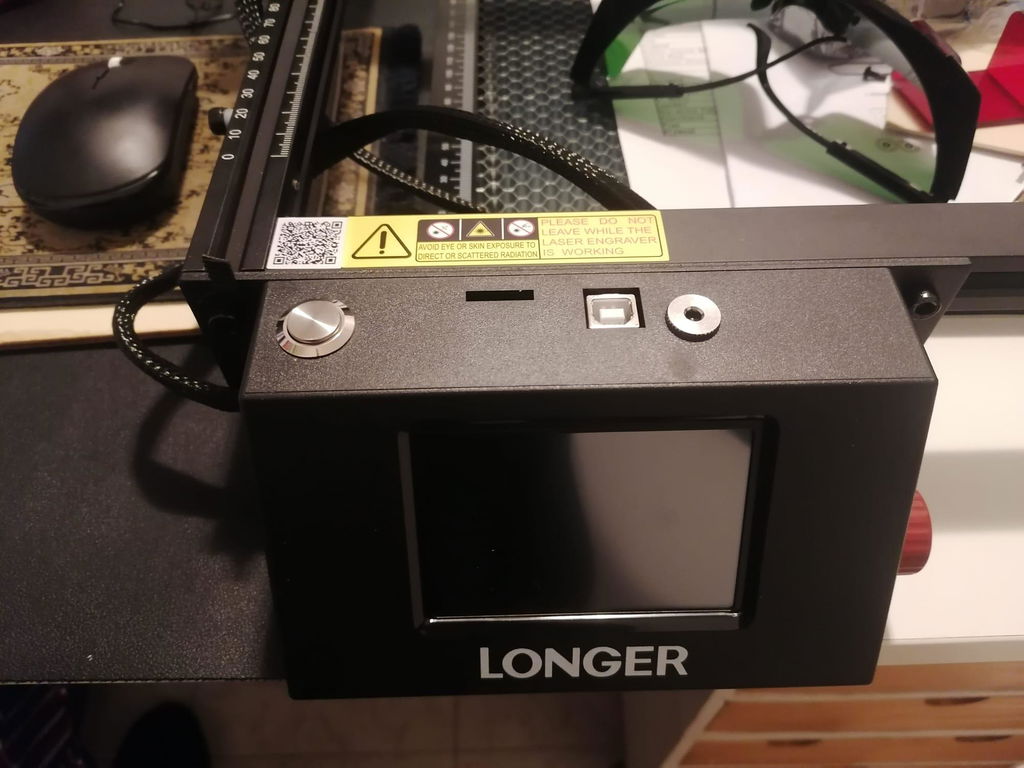
Upgrading the Orange 4K Color Version 3D Printer to the Orange 4K Mono configuration improves UV light transmission, enhances printing efficiency, and delivers sharper print quality. This guide follows the original official procedure exactly while adding beginner-friendly explanations, setup tips, troubleshooting advice, and FAQs for easier operation.
Table of Contents
- What This Guide Covers
- Quick Answer
- Why This Process Matters
- Before You Start
- Step-by-Step Tutorial
- LCD Screen Replacement Guidance
- Common Problems and Solutions
- Tips for Better Results
- Frequently Asked Questions
- Final Thoughts
What This Guide Covers
This tutorial explains how to:
- Upgrade the Orange 4K Color firmware to Orange 4K Mono firmware
- Prepare the USB drive correctly
- Complete the firmware update safely
- Understand exposure parameter adjustments after the LCD replacement
- Learn important precautions before replacing the LCD screen
This guide preserves the original operation sequence and official instructions.
Quick Answer
How do you upgrade the Orange 4K Color Version to Orange 4K Mono?
- Download and unzip the correct firmware package.
- Copy the firmware file to the root directory of a USB drive.
- Turn off the Orange 4K machine.
- Insert the USB drive into the printer.
- Turn the printer back on.
- Wait for the firmware update to complete automatically.
- The machine will reboot and become ready for printing.
After replacing the LCD screen, exposure settings must be adjusted because UV intensity increases significantly with the 4K Mono LCD.
Why This Process Matters
The Orange 4K Mono uses a 5.5-inch monochrome LCD screen with a resolution of 6480 × 3840 at 10.5/31.5µm and features a dual Z-axis design for more stable printing.
Compared with a color LCD:
- Monochrome LCDs allow higher UV light transmission
- Resin curing becomes faster
- Print details become sharper
- Screen lifespan is generally longer
- Printing efficiency improves significantly
Because UV intensity increases after the upgrade, exposure settings must be adjusted properly to avoid overexposure during printing.
Before You Start
Requirements
Prepare the following before starting the upgrade:
- Orange 4K Color Version 3D Printer
- USB drive
- Correct firmware package:
- Orange 4K Color firmware
- Orange 4K Mono firmware
- Firmware version:
- Computer for downloading and copying firmware files
- LCD replacement tools if replacing the screen
Follow official machine specifications or instructions.
Precautions
Before beginning the upgrade:
- Ensure the printer remains powered off while inserting the USB drive.
- Do not rename firmware files.
- Copy the firmware file only to the root directory of the USB drive.
- Avoid disconnecting power during firmware updating.
- Be careful when replacing the LCD screen to avoid cable or screen damage.
- Exposure parameters must be adjusted after replacing the LCD screen.
Step-by-Step Tutorial
Step 1: Download and Unzip the Firmware
Action
Download and unzip the appropriate firmware:
- Orange 4K Color firmware
- Orange 4K Mono firmware
Firmware version:
Orange4KMono_1.3.2
Expected Result
The firmware files are extracted and ready to copy onto the USB drive.
Important Notes
Ensure you select the correct firmware version for your machine configuration.
Step 2: Copy the Firmware File to the USB Drive
Action
Copy the firmware file:
Orange4K
to the root directory of a USB drive.
Expected Result
The firmware file is stored directly in the USB drive root directory and ready for installation.
Important Notes
Do not place the firmware file inside folders.
Step 3: Switch Off the Orange 4K Machine
Action
Turn off the Orange 4K printer completely.
Expected Result
The printer is safely powered down before firmware installation.
Important Notes
Disconnecting power during updating may damage the firmware installation.
Step 4: Connect the USB Drive
Action
Insert the prepared USB drive into the Orange 4K machine.
Expected Result
The printer detects the USB drive after startup.
Important Notes
Make sure the USB drive is securely connected.
Step 5: Switch On the Orange 4K Machine
Action
Power on the Orange 4K printer and wait for the firmware update process.
Expected Result
The firmware update starts automatically.
Important Notes
Do not remove the USB drive or power off the machine during the update.
Step 6: Wait for Automatic Reboot
Action
Allow the machine to complete the firmware installation process.
Expected Result
The machine automatically reboots and becomes ready for printing.
Important Notes
The automatic reboot indicates the firmware update process has completed successfully.
LCD Screen Replacement Guidance
After replacing the 4K Color LCD with the 4K Mono LCD, UV intensity increases significantly.
Because of this:
- Exposure parameters should be adjusted accordingly.
- Parameters can be modified through the printer touch screen.
- Parameters of a job file (
*.lgs4k) can also be changed on a computer using LongerWare.
Follow official machine specifications or instructions.
LCD Screen Replacement Video
Please follow the official video tutorial carefully when replacing the LCD screen:
Youtube Video → How to replace the LCD screen for Orange 4K
Be careful during the replacement process to avoid damaging the LCD cable or connector.
Common Problems and Solutions
| Problem |
Possible Cause |
Solution |
| Firmware update does not start |
Firmware file not in root directory |
Copy the file directly to the USB root directory |
| Printer does not detect USB drive |
USB connection issue |
Reinsert the USB drive securely |
| Printer freezes during update |
Power interruption or corrupted firmware |
Restart the process using the correct firmware |
| Prints become overexposed after upgrade |
UV intensity increased with Mono LCD |
Reduce exposure settings accordingly |
| LCD screen does not display properly |
LCD connection issue |
Recheck LCD cable installation carefully |
| Print quality becomes inconsistent |
Incorrect parameter settings |
Adjust exposure settings through touch screen or LongerWare |
Tips for Better Results
- Use a reliable USB drive during firmware updating.
- Keep the printer on a stable surface during operation.
- Double-check LCD cable orientation during replacement.
- Test exposure settings with a small calibration print after upgrading.
- Save backup copies of important print profiles before modifying settings.
- Clean the LCD surface carefully before printing.
Frequently Asked Questions
1. Why do exposure settings need adjustment after upgrading to Mono LCD?
The 4K Mono LCD allows significantly higher UV transmission, causing resin to cure faster than with the original color LCD.
2. What firmware version is used for the upgrade?
The firmware version referenced in this guide is:
Orange4KMono_1.3.2
3. Can exposure settings be modified directly on the printer?
Yes. Exposure parameters can be modified through the printer touch screen.
4. Can I edit .lgs4k job files on a computer?
Yes. The parameters of a job file (*.lgs4k) can be modified using LongerWare.
5. What should I do if the printer does not reboot automatically?
Restart the process and verify the firmware file placement and USB drive connection.
6. Is the LCD replacement difficult for beginners?
The process requires careful handling of cables and components. Follow the official video tutorial carefully.
7. What are the advantages of the Orange 4K Mono?
The Orange 4K Mono features:
- 5.5-inch monochrome LCD
- 6480 × 3840 resolution
- 10.5/31.5µm precision
- Dual Z-axis design
- Faster and more stable resin printing
Final Thoughts
Upgrading the Orange 4K Color Version 3D Printer to the Orange 4K Mono configuration can significantly improve resin printing speed, detail quality, and printing stability. By carefully following the official firmware update sequence and properly adjusting exposure settings after the LCD replacement, users can achieve more reliable and professional printing results.
If there are any questions or further assistance is needed regarding the upgrade procedure, please contact:
support@longer3d.com
The Orange 4K Mono is built with a 5.5-inch monochrome LCD screen, reaching 6480 × 3840 resolution at 10.5/31.5µm and comes with dual Z-axis support for steady printing.
More information can be found on the Orange 4K product page.
https://eu.longer.net/collections/3d-printers-1