

How to choose a laser engraving machine suitable for starting a business

In today's society, personalized customized products have become a trend, especially in the market for gifts and daily necessities. People's demand for unique products is increasing day by day. Therefore, laser engraving machine entrepreneurship has also ushered in huge opportunities.

Let’s take a look at the market demand. One-size-fits-all products are no longer enough to meet consumer needs. Users are increasingly inclined to choose products that are personalized and reflect their own taste, whether for daily use or as gifts for relatives and friends. This includes a series of products such as customized jewelry and personalized mobile phone cases.

The laser engraving machine is a powerful tool that can meet this demand. It's capable of fine engraving and cutting on a variety of materials, whether it's wood, plastic, leather or metal, with ease. This means that as long as you are creative and have ideas, you can use a laser engraving machine to design ever-changing products.


After confirming that the laser engraving machine has sufficient market potential, what we need to consider is the business method. Should we choose to open a shop or set up a stall?


First, we have to talk about the benefits of setting up a stall. Low cost is one of the most attractive aspects of setting up a stall. You don't need to rent an expensive store, just a small stall to start your business. Moreover, it’s up to you to set up your stall however you want. Let’s talk about high liquidity, which is another trump card for setting up a stall. You can change places at any time according to changes in the flow of people, and you can always find the most suitable location. When festivals are here, go to places with a lot of people; during normal times, find a place with a steady flow of people. In short, you decide your business.

Of course, we cannot fail to mention the role that laser engraving machines play in this. Now that we have chosen to set up a stall, we must choose a laser engraving machine that has good performance and is easy to carry.

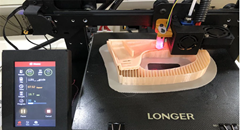
Here I only recommend LONGER RAY5 20W. This guy is lightweight, portable, and easy to operate. It doesn’t require you to have any advanced skills at all. You only need simple learning to get started and start your creative carving.
Even though the price of RAY5 20 watt laser engraving machine is cheap, it has all the functions it should have.

1. High-speed engraving: LONGER RAY5 20W has a maximum engraving speed of 10000mm/min, which means you can complete an engraving work in a few seconds, greatly improving work efficiency. For setting up a stall, time is money. Being able to serve every customer quickly means that you can serve more customers and earn more income.

2. High precision: The laser spot size of 0.08mm*0.10mm can finely process complex and small patterns, which is a huge advantage for personalized customized products that require fine craftsmanship.

3. Strong stability: The machine has excellent stability, which is very important for stall environments that often require mobile equipment. You don’t need to worry about your equipment getting damaged in transit, or malfunctioning after working for many hours.

4. Multi-material compatibility: Able to handle a variety of different materials, including wood, leather, plastic, etc., which means you can provide a richer variety of products to meet the needs of different customers.

5. Easy to operate: The operation interface is simple and intuitive, even laser engraving novices can get started quickly. It also has a 3.5-inch display screen for online operation. This is very important when setting up a stall, as you may not have much time to train your staff or learn complex operations yourself.

6. Safety protection: Equipped with limit switch, infrared flame protection device, and mobile drop suspension protection device. When using a laser engraving machine, safety is one of the most important issues. LONGER RAY5 20W comes with multiple security protection configurations to protect the safety of your creations.

7. Low maintenance cost: RAY5 20w diode laser has low maintenance cost, which is a huge advantage for setting up a stall, because you may not have much budget for equipment maintenance.

Not only that, LONGER also has a very active and resourceful online community. Here, users can find tons of tutorials, tips and creative inspiration. No matter what question you encounter, you can find answers in the community or ask other experienced users directly for help. This is especially valuable for novices because they can quickly learn how to use a laser engraving machine, allowing you to get into the laser engraving machine business more quickly.

Secondly, they also offer a wealth of online tutorials and guides that cover everything from basic setup to advanced techniques. These tutorials usually come with detailed steps and clear pictures or videos, ensuring users can easily follow and understand. This means that even if you are a complete novice in laser engraving, you can master the use of the product in a short time.

In general, setting up a stall to sell laser engraving machines is definitely a good choice due to its low cost, high liquidity, and the ease of operation of the LONGER laser engraving machine.

After the project and equipment are confirmed, be sure not to be careless, and other opening preparations must also be made to avoid falling into pitfalls when setting up a stall to start a business. This is a technical job! First of all, you have to do market research, and you can’t be careless about this. You have to look at different intersections to see where the most traffic is. Don't underestimate this flow of people, it is one of the key factors that determine the success of your business. Moreover, you have to consider the situation during holidays. Some places usually don’t have many people, but when holidays come, the flow of people will increase.

Let’s talk about product pricing, which is also a science. You have to set it according to the local consumption level. Don’t set it too high, and don’t set it too low. A good reference is to look at local catering and steak prices, which can give you a rough idea of where the market is.

In general, although setting up a stall to start a business is a good thing, you still need to be cautious and make adequate preparations and research to ensure that your business can make money steadily and avoid pitfalls.
By Update & Event | November 8, 2023
5 Unbeatable Christmas Gifts to Make with a Longer Laser Cutter

5 Personalized Christmas Gifts to Make with LONGER Laser Engraving

Christmas shopping can be stressful, but, with LONGER laser engraving and some creativity, you can be stress free this holiday season. Using the LONGER RAY5 and some of our ideas below, you can create and customise festive gifts for your family.

1. Customized Christmas Mug

A mug of hot chocolate on a cold Christmas evening is one of winter’s simplest delights. But, since mugs are low effort and impersonal gifts, many people don’t give their closest friends and family mugs.

Using laser engraving, however, you can make and customise an original mug so your finished product will be just as unique as your friend. As long as you choose a style that isn’t festive, your loved one can sip from this mug for the rest of the year, making it a practical and thoughtful family gift.

How to Make an Engraved Christmas Mug…

Select a white or colored ceramic mug and clean the surface thoroughly with rubbing alcohol. Design your engraving using your chosen graphic design software. Load your design into the laser engraver. Using a LONGER laser rotary roller, it will take no time at all for your LONGER RAY5 to engrave your mug. Don’t forget, to make sure your design is perfect, you should run a test first and then position the mug meticulously in your laser engraving machine.

Tip: The fun doesn’t stop with mugs as long as you have the LONGER RAY5 laser cutter by your side. You should try engraving and decorating some tumblers, water bottles, champagne glasses and cafetières. Or, why not make use of the LONGER RAY5’s capabilities as a wood engraving machine so you can make personalized chopping boards and other kitchen utensils?

2. Beautiful Christmas Beanie

Your loved ones need some stylish and fashionable winter outfits to combat Christmas time’s cold weather. Beanies are a super simple personalized family gift that you can make using your laser engraver. You can add their name, a festive message, or a cute image of a tree or snowman, but whatever design you put on the beanie, one thing is for sure, this gift is going to be a big hit.

There is no more versatile and appropriate for all ages gift than a personalised beanie, making them a superlative gift for all of your loved ones. If your family is very close and loves to go on Christmas outings forever, it’s a sweet idea to create a matching set for your whole family. Remember what your loved one’s fashion sense is like so you can choose a beautiful beanie that they will love to wear and keep forever.

How to Make a Personalized Christmas Beanie…

A good quality beanie is required for this project, alongside a couple of leather patches and your good sewing skills to finish off. To keep your spending as low as possible or make a cruelty-free gift, choose some artificial leather patches which will work just as well as a decoration on your beanie. Next, now you’ll need to design your engraving using your favorite design software, place the patch into the LONGER RAY5 laser engraving machine and just watch as your creation comes to life before your very eyes. To finish off, you will have to sew or glue the patch onto your beanie, which is a very simple process and makes beanies the perfect option for beginner engravers who are strapped for time.

Tip: Make use of some handy heat-transfer vinyl, which when you put it in your laser cutter, can be used to make countless personalized clothing items and all you need to do is iron them on. This Christmas, you can fill your loved one’s wardrobes with a massive variety of stylish clothing like T-shirts and hoodies and scarves and baby clothes.

3. Customized Christmas Jewelry

Jewelry has always been a special and thoughtful gift at Christmas time. Personalized Christmas jewelry is also great to commemorate a special event, especially if you add a date or a sweet message to your pendant. Your loved ones can even use this gift as a home decoration.

Just like the beanie, if your recipient has a special sense of style, it’s easy to customize jewelry that will fit right into their wardrobe. Necklaces, bracelets, engraved rings and earrings are all possible with the LONGER RAY5 laser engraver.

How to Make Personalized Christmas Jewelry…

You can choose your favorite acrylic sheets and metal accessories. Design your favorite Christmas ornaments using some software connected to your laser engraver. Snowmen, Christmas trees and snowflakes are all beautiful to look at. Remember, you need two earrings. Use your LONGER RAY5 with a 20w attachment to cut out the shape. Attach the shape to the chain, hooks or ring - use a longer chain for a necklace and a shorter chain for a bracelet.

Tip: Decorate your personalized Christmas jewelry by incorporating gemstones. Take note of what kinds of gems, diamonds and jewels your loved one likes to wear. Simply glue these onto the final piece for a sparkling necklace or bracelet that’s full of festive cheer. You can even use a laser cutter to form the gems in your desired shape.

4. Engraved Christmas Picture Frames

Christmas is a special time of year and one of the only times the whole family can get together. Create lifelong Christmas memories by gifting your loved ones a Christmas frame made with a laser engraver. Include a special photo to complete this family gift.

This personalized gift is great for those who are new to laser engraving. It also offers a huge range of options for designs - you can engrave names, dates, messages and even images into your Christmas picture frame.

How to Make an Engraved Christmas Picture Frame…

You will need a wooden frame of any size for this home decoration. Take the frame’s measurements and create a design that fits the edges. Place your frame in the wood engraving machine and add the design. This process shouldn’t take long, so be sure to do a test beforehand to make sure the design works well. Once your frame is completed, add your photo and you’re all done.

Tip: If you use the same laser cutter you used to create personalized Christmas jewelry to add embellishments to your frame, your frame will undoubtedly be taken to the next level. All you’ll need to do is to simply cut out some Christmas shapes from acrylic with your laser engraver and then use some good quality glue to stick them to your frame.

5. Laser Engraved Christmas Bauble

Finally, no Christmas is complete without some beautiful baubles to decorate the tree. Thankfully, it couldn’t be easier to engrave a bauble ornament and make stunning family gifts with a laser engraving machine. Be sure to make a note of the kind of baubles and home decorations your loved ones like to hang, so your gift doesn’t look out of place.

Whether you want to engrave an existing bauble or make your own acrylic home decoration and then customize it, the possibilities are endless. The best part about gifting a laser-engraved Christmas bauble is that your loved ones can use it every year and be reminded of you.

How to Make a Laser Engraved Christmas Bauble…

You will need a bauble of any shape and color. Create your design using your design software and load it into the LONGER RAY5. Remember to use your LONGER laser rotary roller to hold your bauble in place. Engrave the design and then add some glitter or a glossy finish to complete your home decoration.

Tip: Why not take this family gift to the next level with a unique addition like a QR code? When your friends or family are scanning this code, it will lead them to a video montage or photo album of all your special memories together that you have made separately. It couldn’t be much easier, when you have the help of LONGER laser engraving, to upload a perfect QR code to your RAY5 machine which will then engrave it onto your beautiful Christmas bauble.

The LONGER RAY5 10W Is Your Little Helper This Holiday Season

With the enduring assistance of the LONGER RAY5 laser engraving machine from LONGER, you can let your creative potential fly as you work together to create, make and decorate countless perfect gifts for everyone who you love. The machine has precision engraving and laser cutter capabilities, and best of all, it’s available to you at an affordable price that is the best in market, so heartfelt, customized gifts are merely a few minutes away.

Why should you be choosing the LONGER RAY5 as your go-to laser engraver:

Delicate Detailed Designs For Everyone - The LONGER RAY5 has an unbetable combination of an ultra-fine 5.5W optical output and the 0.08 x 0.08mm FAC compressed laser, and this coupling means for you that the LONGER RAY5 will always allow you to create a huge amount of gorgeous, detailed designs, so if you can dream it, then the RAY5 desktop laser engraver can certainly achieve it for you.

You Won’t Find Better Ease of Use - The LONGER RAY5 is the best and most loved option for those who are new to laser engravers and the art of laser engraving this Christmas. The LONGER RAY5 is what is known as a desktop laser engraver, so this means that it can be set up and getting to work in no time at all and it even works hand in hand with a range of your favourite design software. The machine is equipped with perfect offline cutting capabilities, and this means that you don’t even need to connect the RAY5 to your computer or the internet to get creating some incredible designs. All you need to do is simply to use the 3.5-inch touchscreen to locate your design file and get started with engraving.

Versatile Compatibility for Lots of Different Materials - It doesn’t matter whether you might be looking for a wood engraving machine or a laser engraver that can engrave acrylic, ceramic, leather, glass or some other material you can dream up because the LONGER RAY5 has always got your back no matter what you want to design. The 400mm x 400mm (15.75’’ x 15.75’’) workspace is definitely big and large enough to fit a sheet of whatever material you are choosing, and this is great for allowing you to create designs that are much bigger because bigger is always better. The laser is upgradable to 10W/20W laser modules, so if you want to do something different, don’t be afraid to test your creativity with the LONGER RAY5 and an upgraded laser by your side.

Always Putting Your Safety Above Everything - Just the same as all our LONGER laser engraving and cutting machines, the RAY5 comes to you with 5 built-in safety protections to ensure you have a fun and safe time when creating Christmas gifts. These are thermal protection, which ceases cutting if there is a danger of fire and alerts you with an alarm, move protection to stop cutting if the machine is out of place, motionless protection to turn the laser off if there is a motion issue, an acrylic laser cover to protect your eyes, and an emergency stop button.

Conclusion

And there you have it - 5 unbeatable family gift ideas to make this Christmas with the help of the LONGER RAY5 laser engraving machine. With just one laser engraver, you open the door to endless gifting opportunities for your loved ones, friends and colleagues. No matter what your loved ones like, there’s a way to decorate it with laser engraving. So, now you have everything you need, it’s the time to unleash your festive spirit and get engraving with your new laser engraver to create some gifts this Christmas season.

There is a place for comments on this post, so if you want to, you can share your laser engraving machine creations and any tips with us and other laser engraver lovers. Or, if you’ve made some Christmas gifts with your machine, you must tell us which gift you made with your LONGER RAY5 that you are the most proud of?

Remember, if you maybe need some help with your creations or if you might have some questions about LONGER laser engraving, we are always available for you to get into contact with us. You can either email our expert team with the email sales@longer3d.com, or check out our other contact information here. A member of our LONGER team is always available and more than ready to assist you with any enquiries or issues you might come across when making your Christmas gifts.

By Update & Event | November 8, 2023
Introducing the application process of laser engraving on common materials

As an emerging processing technology in the 21st century, laser technology has been widely used in various industries due to its many characteristics. It occupies a place in all aspects, from food, clothing, housing, and transportation to social and urban construction. Laser engravers are everywhere; there are countless materials used for laser engraving. Today LONGER will take stock of several common materials and their laser engraving technologies for your reference.

Acrylic (plexiglass)

Acrylic laser engraving Acrylic is particularly widely used in the advertising industry. Laser engravers are available in a variety of shapes and sizes and are relatively inexpensive. Generally speaking, Plexiglas adopts the back-carving method, that is, it is carved from the front and viewed from the back, which makes the finished product more three-dimensional. When back engraving, please mirror the graphics first. The engraving speed should be fast and the power should be low. Plexiglas is easier to cut, and an air-blowing device should be used when cutting to improve cutting quality. When cutting plexiglass larger than 8 mm, large-size lenses should be replaced. (Note: Operators are not allowed to leave when cutting plexiglass, as there may be flames during cutting.)

Wood

Wood is one of the most commonly used materials for laser processing. Light-colored woods such as birch, cherry, or maple take advantage of laser vaporization well, making them more suitable for engraving. Each wood has its own characteristics. Some are denser, such as hardwood, and require more laser power when engraving or cutting. The depth of laser cutting wood is generally not deep, within 20 mm. This is because the laser has less power. Slowing down the cutting speed can cause the wood to burn. For specific operations, you can try to use large-size lenses and use repeated cutting methods.

Wood

Density veneer panel

It's a wooden pallet that we often use to make sign liners. The material is high-density board with fine wood grain on the surface. Lasers can engrave on these materials, but the engraved patterns are uneven and dark in color and generally require coloring. Under normal circumstances, learning the correct design and using 0.5 mm two-color plates for inlay can achieve better results. After engraving, just clean the surface of the density board with a damp cloth.

Double-color board

Double color board is an engineering plastic composed of two or more layers of colors specially used for engraving. Its specifications are generally 600*1200 mm, and a few brands have specifications of 600*900 mm. The effect of laser engraving will be very good, with obvious contrast and clear edges. Be careful not to be too slow, and don't cut through it in one go. Just three or four times is enough so that the edges of the cut material are smooth and there are no traces of melting. When engraving, the power should be just right and should not be too high to avoid melt marks.

Double color board

Galvanized copper plate

Typically, copper cannot be laser engraved. But now there is a material with a special paint film attached to its surface. The laser completely vaporizes the paint film on the surface, exposing the copper underneath. Usually, manufacturers will polish or specially treat the copper plate before electroplating so that the exposed area after engraving can be smooth enough and can be preserved for a long time. If the copper surface has not been treated, a protective film needs to be applied after using the laser engraving machine to prevent oxidation and surface contamination over time.

Microfiber

The most common types of microfibers are made from polyester, polyamide (nylon), and/or a combination of polyester and polyamide. It is a durable laser-engraved fabric that produces beautiful results. Using high speed and low power, users can quickly burn off even the slightest layer on top, resulting in engravings with tremendous contrast. To avoid completely burning the fabric layers, we recommend testing various samples until you find the right settings.

Microfiber

Leather and synthetic leather

Synthetic or "faux" leather has proven to be an excellent fabric for carving. When laser engraved, this material creates an almost dimpled look that is very classy and sophisticated. Leather is flexible and durable. It is a material that can definitely withstand laser engraving. And many leathers have back stickers. After laser engraving and cutting, they can be placed directly in many places as exquisite decorations.

Cotton cloth

100% cotton, tightly woven to create a subtle yet elegant sculptural effect. It's important to note how tight the threads are—the tighter the threads, the better the engraving will be. Make sure the cotton is tight enough to withstand the power of the laser. Generally speaking, we can engrave the desired pattern on pure cotton clothing, which requires:

  • Generally speaking, higher speeds and lower power settings are required. The idea is simply to quickly burn off the top layer of fabric to create sculptural contrast.
  • Use strong materials that are tightly bonded. Loose knits, such as those in terry cloth, are more susceptible to scorching than engraving.
  • Fabrics that do not engrave well include terrycloth (robes, towels, etc.) and stuffed animals (bathroom rugs, toys, etc.). In most cases, the threads are not tightly woven and tend to burn rather than be burned. Sculpture.
Cotton cloth

Non-woven fabric (felt)

Nowadays, more and more people are using laser engraving machines to cut felt to create exquisite decorative objects. For example, the Christmas bag below was cut using LONGER B1 30W. In the eyes of young people, this is as fashionable as Christmas stockings. To make a beautiful felt bag, take advantage of the laser's color mapping feature. You can set up various vector lines to cut the two lasers into the fabric or just kiss-cut the fabric to reveal the color underneath. After cutting the fabric, you can DIY this ornament.

Conclusion

Have you tried cutting or engraving these materials? Using laser engraving machines to turn ordinary raw materials into exquisite handicrafts one after another is what we are all doing. I look forward to seeing what you post!

Remember, if you maybe need some help with your creations or if you might have some questions about LONGER laser engraving, we are always available for you to get into contact with us. You can either email our expert team at sales@longer3d.com or check out our other contact information here. A member of our LONGER team is always available and more than ready to assist you with any inquiries or issues you might come across.

By Update & Event | November 8, 2023
A Hauntingly Exquisite Halloween: 10 Laser Cutting and Engraving Ideas for Halloween 2023

Halloween is coming! You will definitely need some unique decorations. Using a laser engraving machine can efficiently help you create small decorations. In the following sections, we’ll discuss some of the most amazing Christmas themed laser cut crafts that will bring joy this upcoming Halloween.

1.Laser-Cut Elegant Masks
When you go to a party or invite others to your party, you must have an elegant mask. With a laser engraver, you can create a variety of laser-cut masks.

Handmade tutorial on how to make exquisite pumpkin masks using laser engraving machine

2. Wooden Signs
People love to stick Halloween wooden signs on doors, houses, and inside offices. It's a great gift for anyone. There are hundreds of ideas and designs to make unique and spooky Halloween wooden signs that will surprise the receiver. You can use wood or acrylic to create these.

Laser Engraving Machine to Make Halloween Signs
3. Vintage Skull Halloween Invitation
The vintage skull invitation is one of the best laser engraving ideas for Halloween. If you want to invite people to your Halloween party in a unique and thrilling way, you can make a skull Halloween invitation with spiders, spider webs, and other ghostly creatures. All you need is a piece of wood and then engrave the whole invitation on it. It will be unique, extraordinary. The recipients will be thrilled to join the party.
LONGER RAY5 Make Halloween Invitations

4. Spooky Halloween Jewelry
Jewelry is a woman's first love, even on Halloween. You can wear some ghostly jewelry, such as pumpkin, spooky bat, skull, witch hat, spider, raven shaped earrings. Rings and necklaces can also be made of wood. If your machine can engrave metal, you can engrave any spooky thing on a metal band.

LONGER laser engraving machine for making jewelry necklaces

5. Skull Rock Glass
Halloween wouldn’t be complete without a skull rock glass. Add a rotary attachment to your laser engraver, and you can engrave any design on any glass. We can use the skull rock glass to welcome guests - I believe that everyone will love this idea.

Beautifully handcrafted Halloween skull glasses

6.Halloween Party Banners
Banners can be used for decorating houses and party venues. They are usually made of cardstock or similar material. We can use a desktop laser engraver to engrave party banners with Halloween slogans and good-looking candies, which will make your Halloween party the most creative in town.

Halloween banner made with LONGER Laser B1 40W

7.Halloween Light Box
The light box is another good idea for Halloween. It looks very attractive and is one of the appealing decor ideas. Making a Halloween light box is not so difficult. All you need to do is make four pieces of engraved and cut wood and then connect them to form a rectangle. You can also provide a lamp with the box; it will be a complete set. People will love this surprising item and will be more willing to come to your party.

Halloween light boxes made by laser engraving machine to decorate the house

8. Halloween Cupcake Toppers/Decorations
People gift cupcakes on Halloween and decorate them with toppers. The cake decorations are made of acrylic, paper, or wood. With a laser machine, making cupcake toppers becomes easier. There are hundreds of designs for Halloween cupcake toppers. You can make different types of toppers and package them in dozens on this special day.

Make handmade Halloween cake trays that can be sold

9. Homemade Candles/Candle Holders
Halloween is incomplete without candles. People light candles at home to make the environment even scarier. Using candle holders can make candles more attractive. When you put a candle into the holder, the shadows from the spooky design look more appealing. You could use your laser machine to make various Halloween candle holders. It's a simple project, and people love to put them on candles. Holders can be made from wood, acrylic, or card stock.

Small Businessman Learns to Make Halloween Lanterns and Makes Lots of Money

10. Various Halloween decorations
Once you have a Halloween mask, don’t forget to make a few accessories for yourself. I suggest you carve acrylic into the shape of a skull and turn it into earrings, or carve weird patterns on stainless steel jewelry. So you have the perfect set of Halloween ornaments.

Exquisite Halloween wooden hang tags to decorate your party


With a laser engraving and cutting machine, anything is possible because you can make almost anything you like. You can seize the opportunity of Halloween to make some relevant items that families can use. To make it easy for you, we've shared some astonishing ideas. You can make these items and then share them on social media. I believe all viewers will love these crafts!

Happy Halloween!

By Update & Event | November 2, 2023
Chitubox Plugins & Configuration of Orange 4K | Chitubox Set Printer - LONGER
Chitubox Plugins & Configuration of Orange 4K | Chitubox Set Printer

This article will help you solve CHITUBOX printer settings or CHITUBOX set printer issues. The LONGER Orange 4K 3D Printer is compatible with CHITUBOX slicing software. Please follow the steps below to complete the setup and configuration for stable resin printing.


Table of Contents

  • What This Guide Covers
  • Why This Process Matters
  • Before You Start
    • Requirements
    • Precautions
  • Step-by-Step Tutorial
    • Step 1: Install the Plugin for Orange 4K in CHITUBOX
    • Step 2: Import the Configuration for Orange 4K Printing Parameters
  • Common Problems and Solutions
  • Tips for Better Results
  • Frequently Asked Questions
  • Final Thoughts

What This Guide Covers

In this guide, you will learn how to:

  • Install the official Orange 4K plugin in CHITUBOX
  • Import default printing configurations from LONGER
  • Use the Orange 4K Mono and 4K Color parameters correctly
  • Reference printing parameters when using other resin brands

Quick Answer

To configure the Orange 4K in CHITUBOX:

  1. Download the appropriate .CHplugin file for your operating system.
  2. Run CHITUBOX and import the plugin.
  3. Import the official Orange 4K configuration file.
  4. Use default LONGER printing parameters as a reference for all your resin profiles.

Following these steps ensures compatible slicing files, correct exposure settings, and stable print results.


Why This Process Matters

CHITUBOX requires the correct plugin and configuration to communicate with the LONGER Orange 4K printer. Without it:

  • Print files may not be compatible
  • Resin exposure settings may be incorrect
  • Print quality can degrade
  • Print failures may occur

Using the official plugin and default configuration ensures stable printing, especially for beginners.


Before You Start

Requirements

  • LONGER Orange 4K or Orange 4K Mono 3D printer
  • CHITUBOX installed on your computer
  • Internet connection for downloading plugins and configuration files
  • Official LONGER Orange 4K configuration files
  • Administrative access to your computer

Precautions

  • Use only official plugin and configuration files
  • Close unnecessary software before installation
  • Do not rename plugin files
  • Do not modify exposure values initially
  • Follow official machine specifications or instructions

Step-by-Step Tutorial

Step 1: Install the Plugin for Orange 4K in CHITUBOX

Action

Run CHITUBOX and import the plugin. Download the plugin files for your system:

Open CHITUBOX and import the .CHplugin file from:

Main Menu > Help > Plugin

Expected Result

  • CHITUBOX recognizes the Orange 4K printer
  • Compatible slicing files can be generated
  • Orange 4K printer becomes available for all supported workflows

Important Notes

  • Ensure the plugin matches your operating system
  • If the plugin fails, restart CHITUBOX and re-import the file

Step 2: Import the Configuration for Orange 4K Printing Parameters

Action

Import the official Orange 4K configuration file into CHITUBOX. After importing:

  • Default printing parameters from LONGER are applied
  • Resin profiles become available for reference

Note: Resin names with (4K Mono) are for Orange 4K Mono printers and use much less exposure time than 4K Color profiles.

Configuration of Orange 4K in Chitubox

Expected Result

  • Default print parameters appear in CHITUBOX
  • You can begin slicing files with correct exposure settings
  • Parameters can serve as references for other resin brands

Important Notes

  • Mono and Color printers use different exposure times
  • Incorrect settings may cause failed prints or overexposure
  • Always start with official profiles before adjusting for other resins

Understanding the Orange 4K Hardware

  • 5.5-inch monochrome LCD screen
  • 6480 × 3840 resolution at 10.5/31.5µm
  • Dual Z-axis for stable printing

The Orange 4K Mono prints faster and with higher precision due to its monochrome LCD, making it one of the finest LCD 3D printers available.

More information: Orange 4K Page

https://www.longer3d.com/collections/3d-printers-1

Common Problems and Solutions

Problem Possible Cause Solution
Plugin does not import Wrong OS version Download the correct .CHplugin
CHITUBOX cannot save slices Plugin missing Reinstall the plugin
Printer profile missing Config file not imported Re-import official Orange 4K configuration
Incorrect exposure Wrong resin profile Select (4K Mono) or 4K Color appropriately
Print fails to adhere Exposure mismatch Recheck default printing parameters

Tips for Better Results

  • Use official resin profiles first
  • Store plugin and config files in a dedicated folder
  • Verify printer type (Mono vs Color) before slicing
  • Reinstall plugin after CHITUBOX updates if needed
  • Test new resins with reference to LONGER profiles

Frequently Asked Questions

Q1: Does the Orange 4K need a plugin in CHITUBOX?
Yes, the official .CHplugin file is required for CHITUBOX compatibility.

Q2: Where to import the plugin?
Main Menu > Help > Plugin in CHITUBOX.

Q3: Difference between Orange 4K Mono and 4K Color?
Mono profiles use much lower exposure times than Color profiles.

Q4: Can I use other resin brands?
Yes, but start with LONGER default profiles as references.

Q5: Why is CHITUBOX not saving my slices?
This can happen if the plugin is missing or incompatible. Reinstalling the correct plugin solves this.

Q6: Which plugin file should I download?
Download the one matching your OS: Linux, macOS, Windows 32-bit, or Windows 64-bit.

Q7: Can I adjust print parameters manually?
Yes, but beginners should start with the official configuration first.

Q8: Is Orange 4K compatible with CHITUBOX?
Yes, it is officially supported for slicing and printing.


Final Thoughts

Following these steps ensures a stable setup for the LONGER Orange 4K in CHITUBOX. Using the official plugin and configuration files provides correct exposure settings and reliable slicing for both Mono and Color printers. Beginners should always start with official profiles and only adjust parameters after initial test prints.

Enjoy your printing with LONGER Orange 4K and share your results with the community!


By Update & Event | July 21, 2021
Steps of Orange 4K Color Upgrade to 4K Mono - LONGER
Steps of Orange 4K Color Upgrade to 4K Mono

Upgrading the Orange 4K Color Version 3D Printer to the Orange 4K Mono configuration improves UV light transmission, enhances printing efficiency, and delivers sharper print quality. This guide follows the original official procedure exactly while adding beginner-friendly explanations, setup tips, troubleshooting advice, and FAQs for easier operation.


Table of Contents

  1. What This Guide Covers
  2. Quick Answer
  3. Why This Process Matters
  4. Before You Start
    • Requirements
    • Precautions
  5. Step-by-Step Tutorial
  6. LCD Screen Replacement Guidance
  7. Common Problems and Solutions
  8. Tips for Better Results
  9. Frequently Asked Questions
  10. Final Thoughts

What This Guide Covers

This tutorial explains how to:

  • Upgrade the Orange 4K Color firmware to Orange 4K Mono firmware
  • Prepare the USB drive correctly
  • Complete the firmware update safely
  • Understand exposure parameter adjustments after the LCD replacement
  • Learn important precautions before replacing the LCD screen

This guide preserves the original operation sequence and official instructions.


Quick Answer

How do you upgrade the Orange 4K Color Version to Orange 4K Mono?

  1. Download and unzip the correct firmware package.
  2. Copy the firmware file to the root directory of a USB drive.
  3. Turn off the Orange 4K machine.
  4. Insert the USB drive into the printer.
  5. Turn the printer back on.
  6. Wait for the firmware update to complete automatically.
  7. The machine will reboot and become ready for printing.

After replacing the LCD screen, exposure settings must be adjusted because UV intensity increases significantly with the 4K Mono LCD.


Why This Process Matters

The Orange 4K Mono uses a 5.5-inch monochrome LCD screen with a resolution of 6480 × 3840 at 10.5/31.5µm and features a dual Z-axis design for more stable printing.

Compared with a color LCD:

  • Monochrome LCDs allow higher UV light transmission
  • Resin curing becomes faster
  • Print details become sharper
  • Screen lifespan is generally longer
  • Printing efficiency improves significantly

Because UV intensity increases after the upgrade, exposure settings must be adjusted properly to avoid overexposure during printing.


Before You Start

Requirements

Prepare the following before starting the upgrade:

  • Orange 4K Color Version 3D Printer
  • USB drive
  • Correct firmware package:
    • Orange 4K Color firmware
    • Orange 4K Mono firmware
  • Firmware version:
    • Orange4KMono_1.3.2
  • Computer for downloading and copying firmware files
  • LCD replacement tools if replacing the screen

Follow official machine specifications or instructions.


Precautions

Before beginning the upgrade:

  • Ensure the printer remains powered off while inserting the USB drive.
  • Do not rename firmware files.
  • Copy the firmware file only to the root directory of the USB drive.
  • Avoid disconnecting power during firmware updating.
  • Be careful when replacing the LCD screen to avoid cable or screen damage.
  • Exposure parameters must be adjusted after replacing the LCD screen.

Step-by-Step Tutorial

Step 1: Download and Unzip the Firmware

Action

Download and unzip the appropriate firmware:

  • Orange 4K Color firmware
  • Orange 4K Mono firmware

Firmware version:

Orange4KMono_1.3.2

Expected Result

The firmware files are extracted and ready to copy onto the USB drive.

Important Notes

Ensure you select the correct firmware version for your machine configuration.

Step 2: Copy the Firmware File to the USB Drive

Action

Copy the firmware file:

Orange4K

to the root directory of a USB drive.

Expected Result

The firmware file is stored directly in the USB drive root directory and ready for installation.

Important Notes

Do not place the firmware file inside folders.


Step 3: Switch Off the Orange 4K Machine

Action

Turn off the Orange 4K printer completely.

Expected Result

The printer is safely powered down before firmware installation.

Important Notes

Disconnecting power during updating may damage the firmware installation.


Step 4: Connect the USB Drive

Action

Insert the prepared USB drive into the Orange 4K machine.

Expected Result

The printer detects the USB drive after startup.

Important Notes

Make sure the USB drive is securely connected.


Step 5: Switch On the Orange 4K Machine

Action

Power on the Orange 4K printer and wait for the firmware update process.

Expected Result

The firmware update starts automatically.

Important Notes

Do not remove the USB drive or power off the machine during the update.


Step 6: Wait for Automatic Reboot

Action

Allow the machine to complete the firmware installation process.

Expected Result

The machine automatically reboots and becomes ready for printing.

Important Notes

The automatic reboot indicates the firmware update process has completed successfully.


LCD Screen Replacement Guidance

After replacing the 4K Color LCD with the 4K Mono LCD, UV intensity increases significantly.

Because of this:

  • Exposure parameters should be adjusted accordingly.
  • Parameters can be modified through the printer touch screen.
  • Parameters of a job file (*.lgs4k) can also be changed on a computer using LongerWare.

Follow official machine specifications or instructions.


LCD Screen Replacement Video

Please follow the official video tutorial carefully when replacing the LCD screen:

Youtube Video → How to replace the LCD screen for Orange 4K

Be careful during the replacement process to avoid damaging the LCD cable or connector.

Common Problems and Solutions

Problem Possible Cause Solution
Firmware update does not start Firmware file not in root directory Copy the file directly to the USB root directory
Printer does not detect USB drive USB connection issue Reinsert the USB drive securely
Printer freezes during update Power interruption or corrupted firmware Restart the process using the correct firmware
Prints become overexposed after upgrade UV intensity increased with Mono LCD Reduce exposure settings accordingly
LCD screen does not display properly LCD connection issue Recheck LCD cable installation carefully
Print quality becomes inconsistent Incorrect parameter settings Adjust exposure settings through touch screen or LongerWare

Tips for Better Results

  • Use a reliable USB drive during firmware updating.
  • Keep the printer on a stable surface during operation.
  • Double-check LCD cable orientation during replacement.
  • Test exposure settings with a small calibration print after upgrading.
  • Save backup copies of important print profiles before modifying settings.
  • Clean the LCD surface carefully before printing.

Frequently Asked Questions

1. Why do exposure settings need adjustment after upgrading to Mono LCD?

The 4K Mono LCD allows significantly higher UV transmission, causing resin to cure faster than with the original color LCD.


2. What firmware version is used for the upgrade?

The firmware version referenced in this guide is:

Orange4KMono_1.3.2


3. Can exposure settings be modified directly on the printer?

Yes. Exposure parameters can be modified through the printer touch screen.


4. Can I edit .lgs4k job files on a computer?

Yes. The parameters of a job file (*.lgs4k) can be modified using LongerWare.


5. What should I do if the printer does not reboot automatically?

Restart the process and verify the firmware file placement and USB drive connection.


6. Is the LCD replacement difficult for beginners?

The process requires careful handling of cables and components. Follow the official video tutorial carefully.


7. What are the advantages of the Orange 4K Mono?

The Orange 4K Mono features:

  • 5.5-inch monochrome LCD
  • 6480 × 3840 resolution
  • 10.5/31.5µm precision
  • Dual Z-axis design
  • Faster and more stable resin printing

Final Thoughts

Upgrading the Orange 4K Color Version 3D Printer to the Orange 4K Mono configuration can significantly improve resin printing speed, detail quality, and printing stability. By carefully following the official firmware update sequence and properly adjusting exposure settings after the LCD replacement, users can achieve more reliable and professional printing results.

If there are any questions or further assistance is needed regarding the upgrade procedure, please contact:

support@longer3d.com

The Orange 4K Mono is built with a 5.5-inch monochrome LCD screen, reaching 6480 × 3840 resolution at 10.5/31.5µm and comes with dual Z-axis support for steady printing.

More information can be found on the Orange 4K product page.

https://www.longer3d.com/collections/3d-printers-1

By Update & Event | July 16, 2021
3D Printer leveling tutorial follow by steps - LONGER
3D Printer leveling tutorial follow by steps

For some beginner of 3D printer user, they don't know how leveling. in this article, we going to tech you how leveling 3d printer before printing. and our Lk5 pro 3d printer suitable for new 3d printer user, if you interested, could have a look.

Table of Contents

  • What This Guide Covers
  • Quick Answer
  • Why 3D Printer Leveling Matters
  • Before You Start
    • Requirements
    • Precautions
  • Step-by-Step 3D Printer Leveling Tutorial
  • Common Problems and Solutions
  • Tips for Better Leveling Results
  • Frequently Asked Questions
  • Final Thoughts

What This Guide Covers

This guide explains:

  • How to level a Longer 3D printer manually
  • How to use the A4 paper leveling method
  • Why heating the print bed matters
  • How to adjust leveling knobs correctly
  • How to check nozzle-to-bed spacing
  • Common leveling mistakes beginners make

This tutorial follows the original Longer leveling procedure and is suitable for beginner users.


Quick Answer

To level a Longer 3D printer:

  1. Make sure the limit switch is installed correctly.
  2. Heat the hot bed to 60°C.
  3. Prepare one piece of A4 paper.
  4. Enter leveling mode on the touch screen.
  5. Move the nozzle to each corner in sequence.
  6. Adjust the leveling knobs until the paper has slight friction between the nozzle and the bed.
  7. Check the center position and repeat if necessary.

Correct leveling helps improve first-layer adhesion and print quality.


Why 3D Printer Leveling Matters

Bed leveling ensures the nozzle stays at a consistent distance from the print surface across the entire build area.

If the nozzle is too high:

  • Filament may not stick properly
  • Prints can detach during printing
  • First layers may look thin or incomplete

If the nozzle is too low:

  • The nozzle may scrape the bed
  • Filament can become overly compressed
  • Extrusion may become inconsistent

Proper leveling helps:

  • Improve first-layer adhesion
  • Reduce failed prints
  • Improve print accuracy
  • Protect the nozzle and build surface
  • Create smoother bottom layers

Even modern printers with assisted leveling still require proper setup and verification.


Before You Start

Requirements

Prepare the following before leveling your Longer 3D printer:

  • Longer 3D printer
  • One piece of A4 paper
  • Power connection
  • Access to the printer touch screen

Follow official machine specifications or instructions.


Precautions

Before starting the leveling process:

  • Ensure the printer is placed on a stable surface
  • Make sure the hot end and bed are clean
  • Avoid forcing the nozzle against the print bed
  • Keep fingers away from hot surfaces
  • Do not move the print head aggressively by hand

Heating the bed before leveling is important because thermal expansion can slightly change the bed height.


Step-by-Step 3D Printer Leveling Tutorial

Step 1: Check the Limit Switch Installation

Action

Before leveling, make sure the limit switch is installed correctly.

Manually lower the hot end until it just touches the print bed.

Then:

  1. Loosen the fixing screw of the limit switch
  2. Adjust the limit switch to the position just triggered

Expected Result

The printer should correctly detect the nozzle home position.

Important Notes

An incorrectly positioned limit switch can cause inaccurate leveling or nozzle crashes.

If the nozzle presses too hard into the bed during homing, stop immediately and recheck the switch position.

Step 2: Power On the Printer

Action

Turn on the Longer 3D printer.

Expected Result

The printer should boot normally and display the main interface on the touch screen.

Important Notes

Allow the printer to complete startup before proceeding to the next step.


Step 3: Heat the Hot Bed to 60 Degrees

Action

Heat the hot bed to 60°C.

Expected Result

The bed temperature should stabilize at 60°C before leveling begins.

Important Notes

The original Longer procedure specifies heating the hot bed because thermal expansion and contraction may affect leveling accuracy when cold.

Do not skip this step.

Leveling 3d printer

Step 4: Prepare a Piece of A4 Paper

Action

Prepare one piece of standard A4 paper.

Expected Result

The paper will be used to measure the gap between the nozzle and the print bed.

Important Notes

The paper acts as a simple thickness reference during leveling.

Do not use excessively thick material unless specified by official instructions.


Step 5: Enter Leveling Mode

Action

Select the leveling mode on the printer touch screen.

Press the buttons in sequence according to the leveling interface.

Expected Result

The nozzle should move automatically to different leveling positions.

Important Notes

Wait for the hot end to stop moving completely before making adjustments.

Avoid touching moving parts during positioning.


Step 6: Adjust the First Corner

Action

When the hot end stops:

  1. Place the A4 paper between the nozzle and the print bed
  2. Slowly adjust the leveling knob under the print bed
  3. Continue adjusting until you feel slight friction on the paper

Expected Result

The paper should move with light resistance.

Important Notes

The paper should not move freely, and it should not become tightly trapped.

The correct spacing is reached when the paper slides with slight friction.


Step 7: Repeat for All Four Corners

Action

Repeat the same leveling process for all four corners of the print bed.

At each corner:

  • Insert the A4 paper
  • Adjust the leveling knob
  • Check for slight friction

Expected Result

All four corners should have similar nozzle spacing.

Important Notes

Adjusting one corner may slightly affect another corner.

You may need to repeat the process multiple times for consistent results.

This is normal during manual bed leveling.

Leveling 3d printer

Step 8: Check the Center Position

Action

After adjusting the four corners, press the "5" button.

Use the A4 paper to check the friction in the center of the print bed.

Expected Result

The center should have the same slight friction as the corners.

Important Notes

If the center feels incorrect, repeat the leveling steps again until the entire bed feels consistent.

And you can follow video below, leveling your 3D printer: https://youtu.be/TJ0MOFPuOTQ

https://www.longer3d.com/collections/3d-printers-1

Common Problems and Solutions

Problem Possible Cause Solution
Filament does not stick Nozzle too high Re-level the bed and reduce nozzle distance
Nozzle scratches the bed Nozzle too low Loosen the leveling knobs slightly
One corner prints differently Uneven leveling Repeat corner leveling process
Paper feels different in center Bed not evenly leveled Recheck all corners and center
Prints warp or detach Poor first layer adhesion Re-level bed and clean print surface
Bed leveling keeps changing Loose hardware or springs Inspect leveling hardware
Extruder clicks during first layer Bed too close to nozzle Increase nozzle gap slightly

Tips for Better Results

Heat the Bed Before Leveling

Always level with the bed heated to the target temperature specified in the tutorial.

Thermal expansion can affect leveling accuracy.


Use Consistent Paper Pressure

Try to maintain the same amount of paper friction at every corner.

Consistency is more important than excessive tightness.


Recheck After Moving the Printer

Transporting or moving the printer can affect bed alignment.

Re-level the bed after relocation.


Clean the Print Surface

Dust, glue buildup, or leftover filament can affect leveling accuracy.

Clean the print bed regularly.


Be Patient During Manual Leveling

Manual leveling often requires several adjustment passes before all corners become consistent.

Beginners commonly need multiple attempts before achieving reliable results.


Frequently Asked Questions

How often should I level my 3D printer bed?

You should check leveling:

  • Before important prints
  • After moving the printer
  • After nozzle replacement
  • If first-layer issues appear

Why is A4 paper used for leveling?

A4 paper provides a simple reference thickness that helps estimate the correct nozzle gap.

The paper should slide with slight friction during leveling.


Why does the bed need to be heated to 60°C?

Heating compensates for thermal expansion and helps create more accurate leveling conditions.


What happens if the nozzle is too close to the bed?

The nozzle may:

  • Scratch the surface
  • Block filament flow
  • Damage the build plate
  • Cause poor extrusion

What happens if the nozzle is too far from the bed?

The filament may not stick properly, leading to:

  • Weak adhesion
  • Failed prints
  • Uneven first layers

Why do I need to repeat leveling multiple times?

Adjusting one corner can slightly affect the others.

This is normal with manual leveling systems.


Can I level the bed while the printer is cold?

The original Longer procedure specifies heating the bed to 60°C before leveling.

Follow official machine instructions for best results.


Final Thoughts

Learning how to level a 3D printer is one of the most important beginner skills in FDM printing. A properly leveled bed improves first-layer adhesion, reduces failed prints, and helps produce cleaner, more reliable models.

By following this Longer 3D printer leveling tutorial carefully and using the A4 paper method, beginners can achieve stable and consistent printing results. If leveling still feels inconsistent after several attempts, repeat the process slowly and verify that the limit switch and bed hardware are installed correctly.

Consistent leveling is the foundation of successful 3D printing.

By Update & Event | May 24, 2021
Advantages of 3D printing - LONGER
Advantages of 3D printing

Speed

One of the main advantages of 3D printing is that the production speed of parts is more efficient compared to traditional manufacturing methods. Models with complex designs can be exported from the software and produced using a 3D printer within a few hours. The advantage of this is that the design ideas can be quickly verified and iterated.

In the past, it may take days or even weeks to manufacture prototypes through traditional processing methods, while designers can obtain models within a few hours through 3D printing. Although more industrial 3D printers take longer to print and post-process parts, the ability to produce functional final parts in small and medium batches provides a huge time-saving advantage compared to traditional manufacturing techniques (usually for hand-offs). The delivery time is advanced, and a separate injection mold may take several weeks).

Spend

Manufacturing costs can be divided into three categories: machine operating costs, material costs and labor costs.

Machine operating cost: Most household 3D printers consume power similar to a computer. Industrial 3D printing technology may consume more electricity to produce individual parts. However, the ability to generate complex geometries in just one step can lead to higher efficiency and turnover. Machine operating costs are usually the lowest contribution to the total cost of manufacturing.

Material cost: The material cost of 3D printing varies by technology. Household FDM printers 1KG Filament about $20, as Longer PLA Filament, free ship from our local warehouse to Euro, USA and Russia

Labor cost: One of the main advantages of 3D printing is the lower labor cost. Except for post-processing, most 3D printers only need one or two operators. The machine then follows a fully automated process to produce the parts. Compared with traditional manufacturing, which usually requires skilled machinists and operators, the labor cost of a 3D printer is almost zero.

Compared with the traditional manufacturing process, the cost of small batch 3D printing is very competitive. For the production of prototypes for verification of shape and assembly, it is much cheaper than other alternative manufacturing methods (such as injection molding) and is generally competitive in manufacturing disposable functional parts. With the increase in production, traditional manufacturing technology will become more cost-effective, so 3D printing is an important supplement to traditional manufacturing.

Reduce potential risks

If you accidentally make a defective prototype, it will waste the designer's time and money. The use of traditional mold processing and manufacturing methods, even small changes, may bring huge financial expenses (high mold opening costs).

People can verify the design by printing prototypes that can be used for production before purchasing expensive manufacturing equipment (such as molds or tooling and fixtures), thereby eliminating the risk in the prototyping process. This helps to verify the feasibility of the project through trial and error at low cost of 3D printing before the large investment required for large-scale production.

Complexity and design freedom

Traditional manufacturing methods have relatively high restrictions on the products that can be manufactured. Design requirements such as draft angle, undercut and tool entry are not suitable.

For 3D printing, there may be some restrictions on the minimum size features of accurate printing, but in most cases, the main limitation is how to optimize the printing direction to reduce the support dependence and the possibility of printing failure. This provides designers with a lot of design freedom and allows very complex geometric shapes to be easily created.

https://www.longer3d.com/products/lk5-pro-fdm-3d-printer

By Update & Event | May 14, 2021
Shipment #4 Orange 4K Color 3d printer is on set - LONGER
Shipment #4 Orange 4K Color 3d printer is on set

Hey, finally, the Orange 4K Color 3d printers are on set for shipment.

  • Orange 4K Color Shipment

We are sorry for the whole project in delayed, the 4K Color printers will be shipped to our US/Euro warehouse first, in this case, each backers won't be charged by import tax and Euro backers won't be charged VAT either. The rest backers will be shipped accordingly by backer number by express. We will update with tracking number by email.

Please note that, the printers are all packed with standard one, some add-on spare parts will be shipped seperately from China. And we will email with tracking number to backers as well.

  • Orange 4K Mono 3D Printer

As plan, the mono screen will be arrived around the end of April, but I think we will get them earlier than expected, because we got the feedback from our supplier, the schedule of production will be ahead about one week. Anyway, we will keep update on this.

We'd like to share images printed by 4K Mono, it's ameralabs testing model, printed by Orange 4K Mono, and washable resin in 50um. It's not in perfect of printing parameter, and we will print with our new standard uv resin (Deep Peach Color), of which will be with better performance.

We will keep update soon, if there's any question, please feel free to let us know and contact us at yt@longer3d.com by email.

Thanks,

Longer Team

https://www.longer3d.com/products/orange-4k-resin-3d-printer

By Update & Event | April 8, 2021
Orange 4K Update #3 The Shipment & Project Status - LONGER
Orange 4K Update #3 The Shipment & Project Status

We are sorry for the delayed update on this project, everything is still processing, the 4k color screen has been back to our factory after recover the screen, this procedure has taken a long time to finish, because we need to peel off the previous cover very carefully and then recover again to lcd screen. They ware arrived in our factory yesterday night.

  • Orange 4K Color Printer Shipment part 1

We shipped out 21 units before our Chinese New Year holidays to our warehouse, this dispatched is the very first production we made and selected. We will ship the printers as backer number as following today, for sure, the compensation resin will be shipped together:

  • Orange 4K Color printer shipment part 2

The Oraneg 4K color printer will be finished assembly and testing around the end of March or the beginning of April, after that, we will ship them out to our warehouses first, then to dispatch to each backers. Moving in this way, each backer won't be charged by import tax or VAT (Euro backer, but not included UK now). We will update the pictures when the 4K printer is on our production lines and ready for shipment.

  • 4K Mono LCD Screen

Now we are still waiting the mono screen on production, in plan, they will be launched for production next Tuesday and we will get them around 10th-15th of April after they are inspected.

  • Orange 4K Mono Printer Shipment

After we get the mono screen, the 4K Mono printer will be on set for production. The printer will be started for shipment around the end of April.

  • Issues we resolved-Reboot Randomly

We improved the isolation on board, connecting cables and the grounding between board and metal case in the defective printers, they perform better than before after 72 hours testing, and didn't reboot again.

  • Issues we resolved-Cooling Fan

After two weeks aging test, we have changed the cooling fan as a higher rotating one with more stable speed.

We are sorry again for the delayed, but the project is still moving normally. If there's any question or need further information, please feel free to contact us at support@longer.net.

Thanks and Best regards,

Longer Team

https://www.longer3d.com/products/orange-4k-resin-3d-printer

By Update & Event | March 23, 2021