



This article will help you solve CHITUBOX printer settings or CHITUBOX set printer issues. The LONGER Orange 4K 3D Printer is compatible with CHITUBOX slicing software. Please follow the steps below to complete the setup and configuration for stable resin printing.
Table of Contents
- What This Guide Covers
- Why This Process Matters
- Before You Start
- Requirements
- Precautions
- Step-by-Step Tutorial
- Step 1: Install the Plugin for Orange 4K in CHITUBOX
- Step 2: Import the Configuration for Orange 4K Printing Parameters
- Common Problems and Solutions
- Tips for Better Results
- Frequently Asked Questions
- Final Thoughts
What This Guide Covers
In this guide, you will learn how to:
- Install the official Orange 4K plugin in CHITUBOX
- Import default printing configurations from LONGER
- Use the Orange 4K Mono and 4K Color parameters correctly
- Reference printing parameters when using other resin brands
Quick Answer
To configure the Orange 4K in CHITUBOX:
- Download the appropriate
.CHpluginfile for your operating system. - Run CHITUBOX and import the plugin.
- Import the official Orange 4K configuration file.
- Use default LONGER printing parameters as a reference for all your resin profiles.
Following these steps ensures compatible slicing files, correct exposure settings, and stable print results.
Why This Process Matters
CHITUBOX requires the correct plugin and configuration to communicate with the LONGER Orange 4K printer. Without it:
- Print files may not be compatible
- Resin exposure settings may be incorrect
- Print quality can degrade
- Print failures may occur
Using the official plugin and default configuration ensures stable printing, especially for beginners.
Before You Start
Requirements
- LONGER Orange 4K or Orange 4K Mono 3D printer
- CHITUBOX installed on your computer
- Internet connection for downloading plugins and configuration files
- Official LONGER Orange 4K configuration files
- Administrative access to your computer
Precautions
- Use only official plugin and configuration files
- Close unnecessary software before installation
- Do not rename plugin files
- Do not modify exposure values initially
- Follow official machine specifications or instructions
Step-by-Step Tutorial
Step 1: Install the Plugin for Orange 4K in CHITUBOX
Action
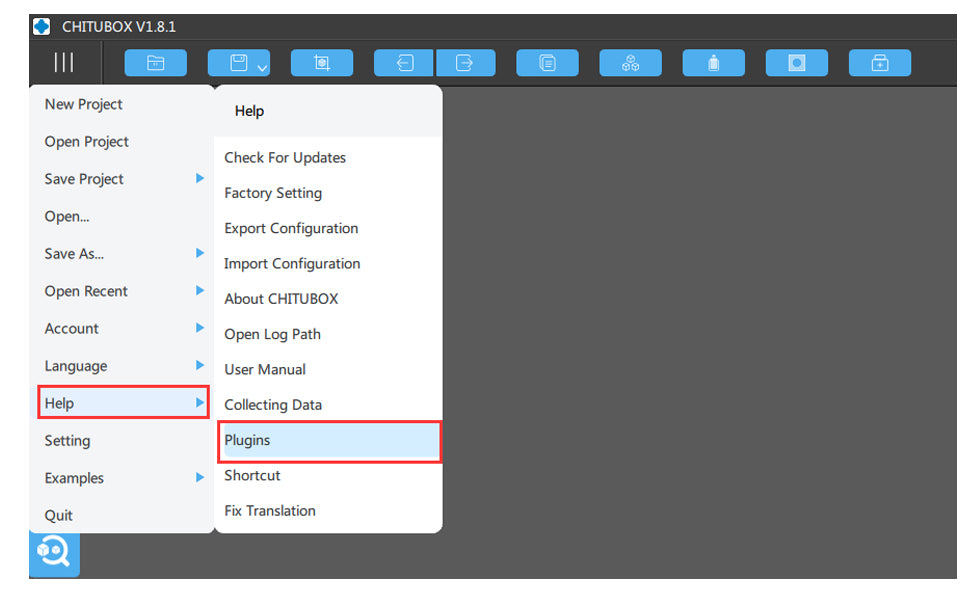
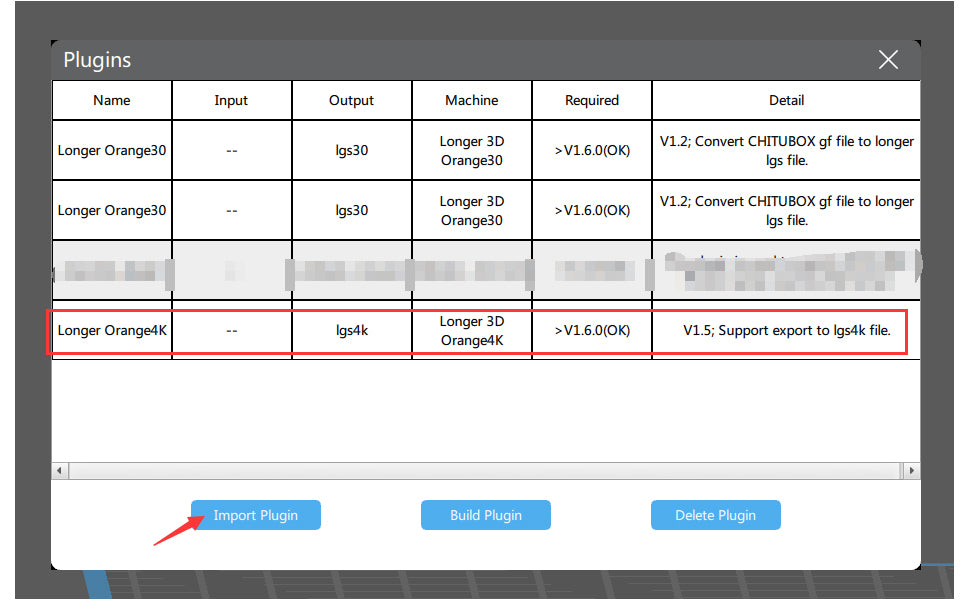
Run CHITUBOX and import the plugin. Download the plugin files for your system:
Longer3D-Orange4K-Linux-V1.5.CHpluginLonger3D-Orange4K-macOS-V1.5.CHpluginLonger3D-Orange4K-Windows32bit-V1.5.CHpluginLonger3D-Orange4K-Windows64bit-V1.5.CHplugin
Open CHITUBOX and import the .CHplugin file from:
Main Menu > Help > Plugin
Expected Result
- CHITUBOX recognizes the Orange 4K printer
- Compatible slicing files can be generated
- Orange 4K printer becomes available for all supported workflows
Important Notes
- Ensure the plugin matches your operating system
- If the plugin fails, restart CHITUBOX and re-import the file
Step 2: Import the Configuration for Orange 4K Printing Parameters
Action
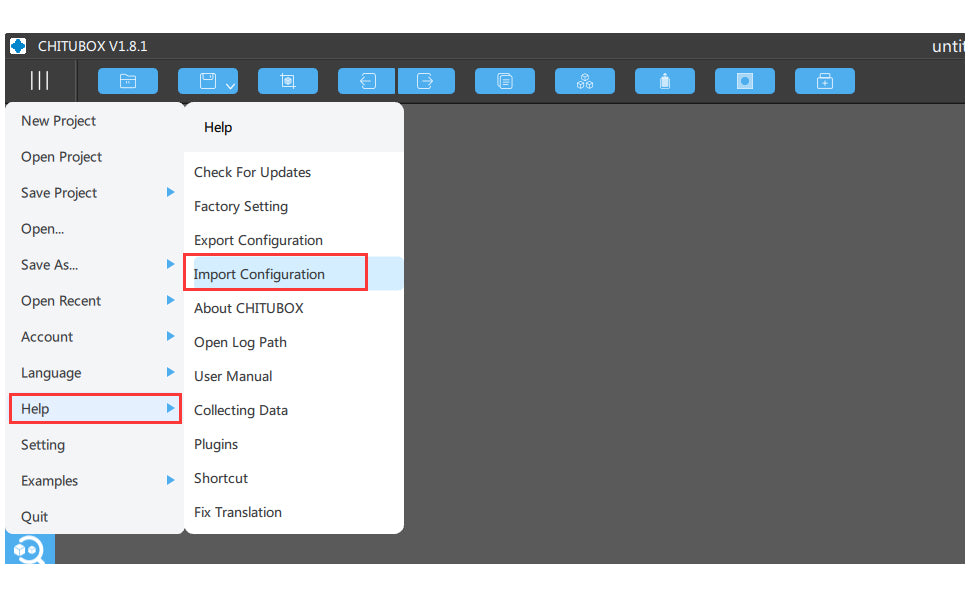
Import the official Orange 4K configuration file into CHITUBOX. After importing:
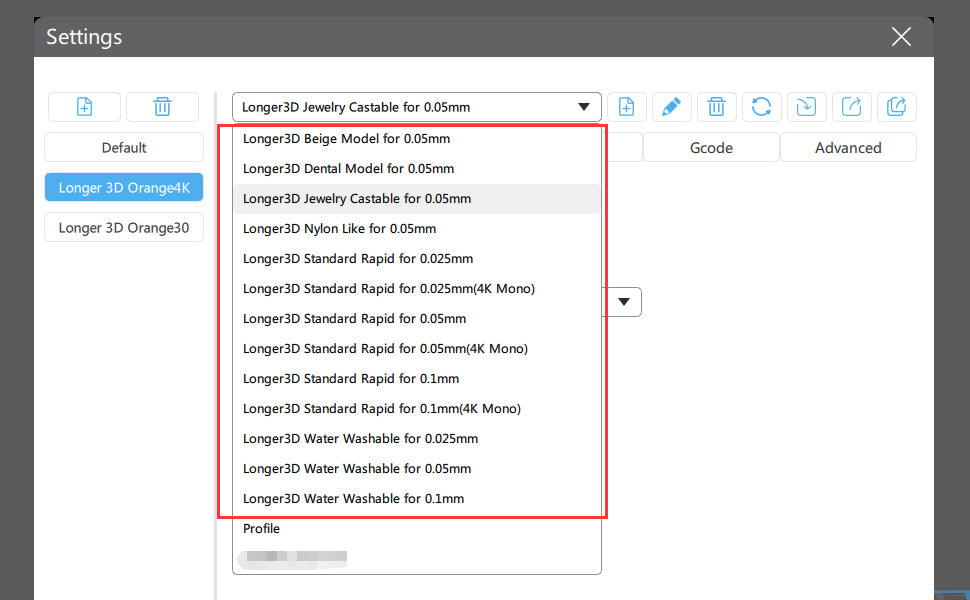
- Default printing parameters from LONGER are applied
- Resin profiles become available for reference
Note: Resin names with
(4K Mono)are for Orange 4K Mono printers and use much less exposure time than 4K Color profiles.
Expected Result
- Default print parameters appear in CHITUBOX
- You can begin slicing files with correct exposure settings
- Parameters can serve as references for other resin brands
Important Notes
- Mono and Color printers use different exposure times
- Incorrect settings may cause failed prints or overexposure
- Always start with official profiles before adjusting for other resins
Understanding the Orange 4K Hardware
- 5.5-inch monochrome LCD screen
- 6480 × 3840 resolution at 10.5/31.5µm
- Dual Z-axis for stable printing
The Orange 4K Mono prints faster and with higher precision due to its monochrome LCD, making it one of the finest LCD 3D printers available.
More information: Orange 4K Page
https://eu.longer.net/collections/3d-printers-1
Share:
Steps of Orange 4K Color Upgrade to 4K Mono
Make a Merry Return to Traditional Handcrafted Gifts This Christmas with Longer’s Festive Lineup of Laser Engravers and 3D Printers